How To Turn Your Art Into A Movie With AI (Step-By-Step Tutorial)


Disclosure: Some of the links in this post may be affiliate links. If you click on the link and make a purchase, I will receive an affiliate commission at no extra cost to you. As an Amazon Associate I earn from qualifying purchases.
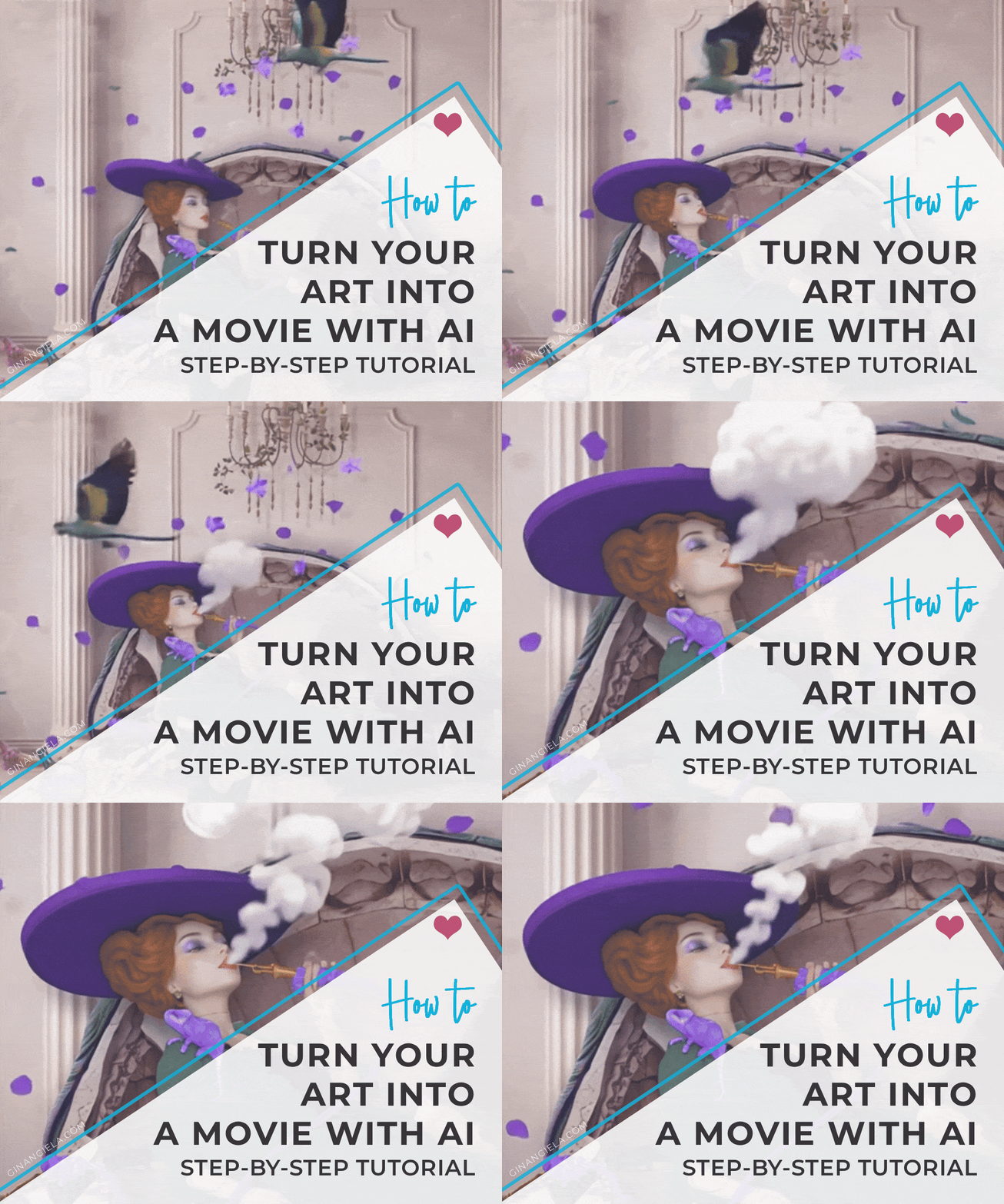
If you’re a traditional or digital artist, you might enjoy turning your work into a movie with AI. Animating static images isn’t a big deal anymore. There are lots of easy-to-use image-to-video generators that allow you to bring your artwork to life with a couple of clicks. In this tutorial, I show you how to turn your art into a movie with AI—in four easy steps!

How To Turn Your Art Into A Movie With AI

Pastime‘ turned into a movie using PixVerse AI

As traditional and digital artists, our creations are naturally static. Turning them into a movie with AI is a great way to have them tell a story or make them more attention-worthy for social media. 

And quite honestly, it’s always exciting to see how AI brings your artwork to life, time and time again. 😍

For a recent review, I’ve animated multiple artworks, testing more than a dozen AI video generators to find out which ones are worth using

Out of all the options I’ve tested, there was one tool that stood out both in terms of performance and pricing.
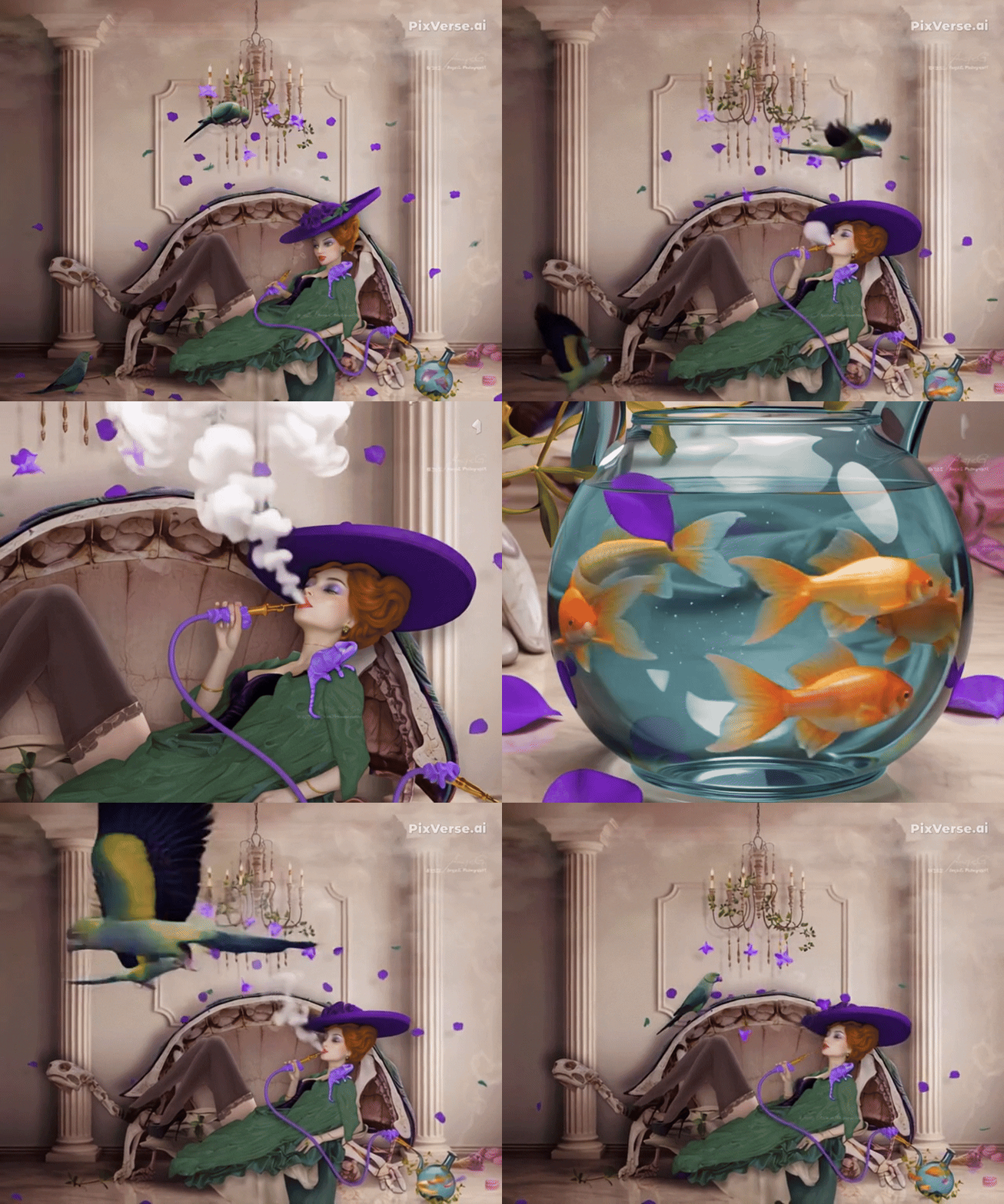
In this tutorial, I'm showing you how to turn your art into a movie with AI in just a couple of minutes using one of the best video generators on the market.

Despite the impressive results, the creation process is hilariously easy, requiring just a few steps and a couple of clicks of the mouse.

With that said, let’s get into it!

How To Turn Your Art Into A Movie With AI:

 Our Newsletter  is packed with creative tips, free tutorials, art tool reviews, and looaads of inspiration!

Can AI generate a video from a picture?

AI technology is evolving in quantum leaps. What hasn’t been possible a few months ago can now be done with just a couple of clicks.

This holds true for generating videos from pictures, too.

While generative AI tools could only create images based on a prompt some time ago, you can now use them to create highly realistic, cinematic video clips.

The most recent generation of AI video generators supports multimodal workflows that allow you to:

  • generate videos from prompts,
  • from reference images and/or videos, and
  • integrate audio references and synchronized sound. 

It’s pretty amazing. 

That said, it’s absolutely possible to have AI generate a video from a picture simply by uploading it as a reference and writing a prompt that describes what to do with it.

In this tutorial, I'll explain exactly what you need to do to turn your art into a video with AI—in just four simple steps.

Here’s an example of one of my artworks turned into a video using PixVerse AI (you’re going to learn how to do that in this tutorial):

Pastime‘ turned into a video using PixVerse AI (converted to GIF)

Can you make AI movies for free?

Yes, you can actually make AI movies for free on PixVerse AI.

The platform gives you free daily credits that allow you to generate a limited number of videos with its native video models (PixVerse V6, PixVerse C1, and PixVerse V5.6).

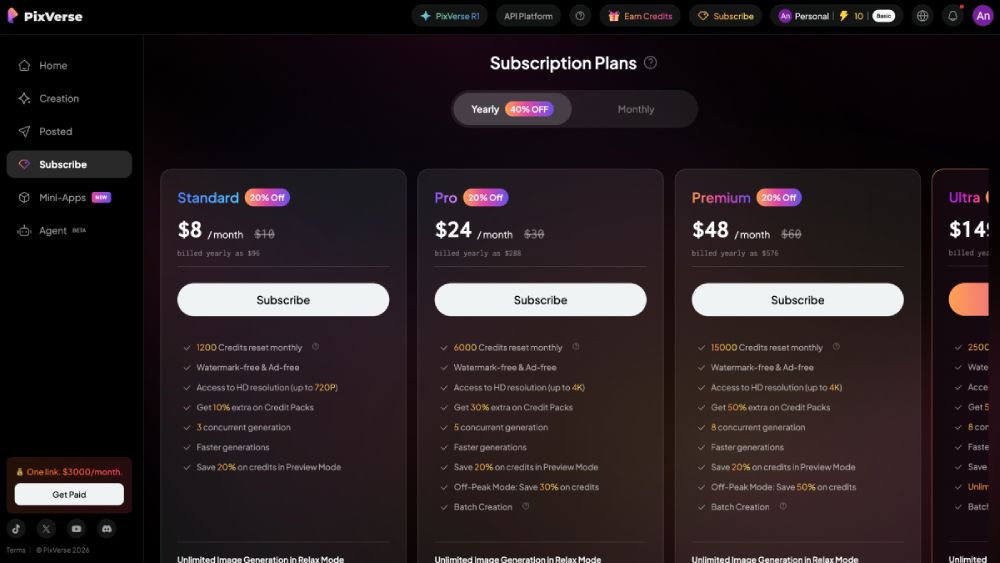
To generate more videos and gain access to more advanced video models, including Seedance 2.0, Veo 3.1, Kling, Grok Imagine, and Sora 2, PixVerse AI offers some of the most competitive pricing plans I’ve seen among AI video generators.

The Pro Plan offers the best value for your money. For $24, you can create up to 300 videos per month, with a resolution of up to 4k. The videos can be downloaded without watermarks or ads.

You’ll also get access to all advanced video models, including a 40% discount on HappyHorse 1.0.

» Get 40% off the Pro Plan when subscribing for a year.

If you don’t want to generate more than around 60 AI videos per month, the Standard Plan at $8 per month may be sufficient. While videos are downloadable watermark-free and ad-free, the maximum resolution is capped at 720p, and you can only use PixVerse’s native video models.

Keep in mind that retries and upscales also count toward your video limit!

» Get 40% off on Standard Plan when subscribing for a year.

PixVerse AI offers some of the most competitive pricing plans on the market

PixVerse AI offers some of the most competitive pricing plans on the market

Step-By-Step Tutorial: How To Turn Your Art Into A Movie With AI

It’s really easy to turn your artwork into a video with AI. However, to avoid wasting credits on failed attempts, it’s important to follow an organized and cost-effective workflow.

Here’s an easy 4-step video generation process you can follow:

STEP 1: Register a Free Account

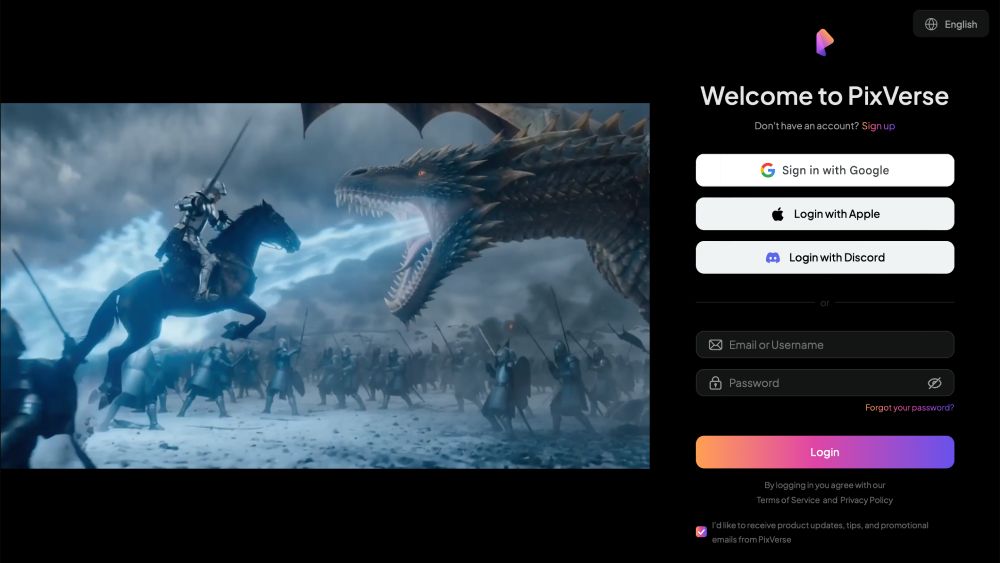
First of all, you want to go to PixVerse AI and create a free account. 

Simply click on “Try PixVerse” in the upper right corner, and you can sign up via Google, Apple, or Discord—or by entering your email manually.

After signing up, you’ll automatically receive a number of free credits that you can use to generate videos from your artwork.

Register a free account on PixVerse AI to turn your art into movie

Create a free account on PixVerse AI

STEP 2: Upload Your Artwork

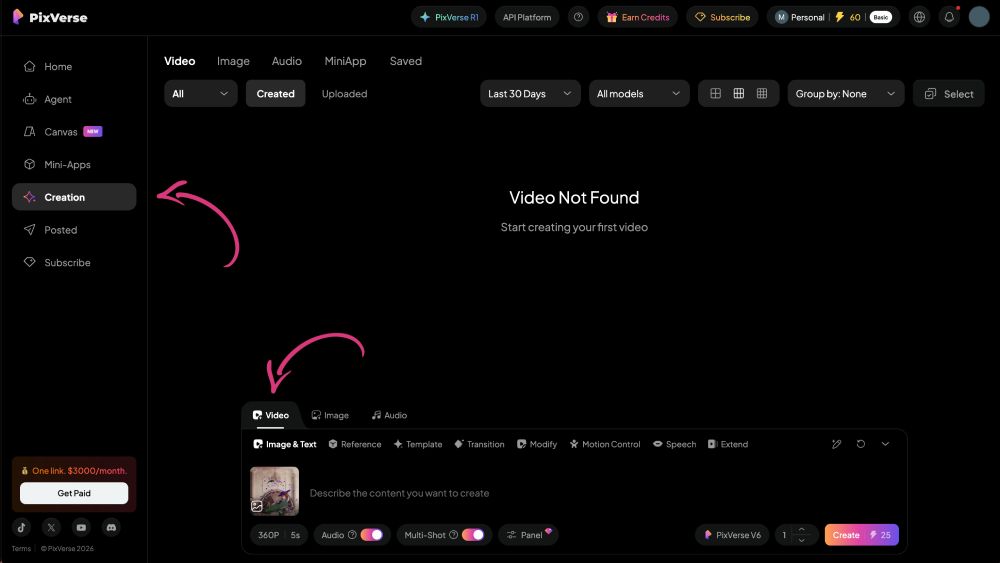
Once you’re redirected to the dashboard after signing up for free, click “Creation” on the left-hand side and make sure “Video” is selected in the bottom input field.

There, you can click the image icon and upload your artwork you want to turn into a movie with AI.

Upload the artwork you want to turn into an AI movie

Click the image icon to upload the artwork you want to turn into an AI movie

STEP 3: Write a Prompt

The prompt is the most important factor when it comes to turning your art into a movie with AI. It determines the outcome and can make it or break it. 

To avoid wasting credits, it’s worth putting some thought into crafting your prompt before you proceed with generating the video.

The prompt doesn’t have to be complicated, though. You can use natural language to describe the video scene you want to create.

One way to achieve good results is to draft out your prompt first and then use ChatGPT to improve it.

The prompt I used to animate “Pastime” for this tutorial was relatively simple—but still did a good job:

“Make the lady on the couch smoke her hookah, while the parrots are moving around in the room, the fish are swimming in the glass bowl, and the petals are flowing.”

Pastime‘ is the artwork I turned into a movie for this tutorial using PixVerse AI

STEP 4: Configure Video Settings

With your artwork uploaded and your prompt written out, it’s time to configure the video output settings.

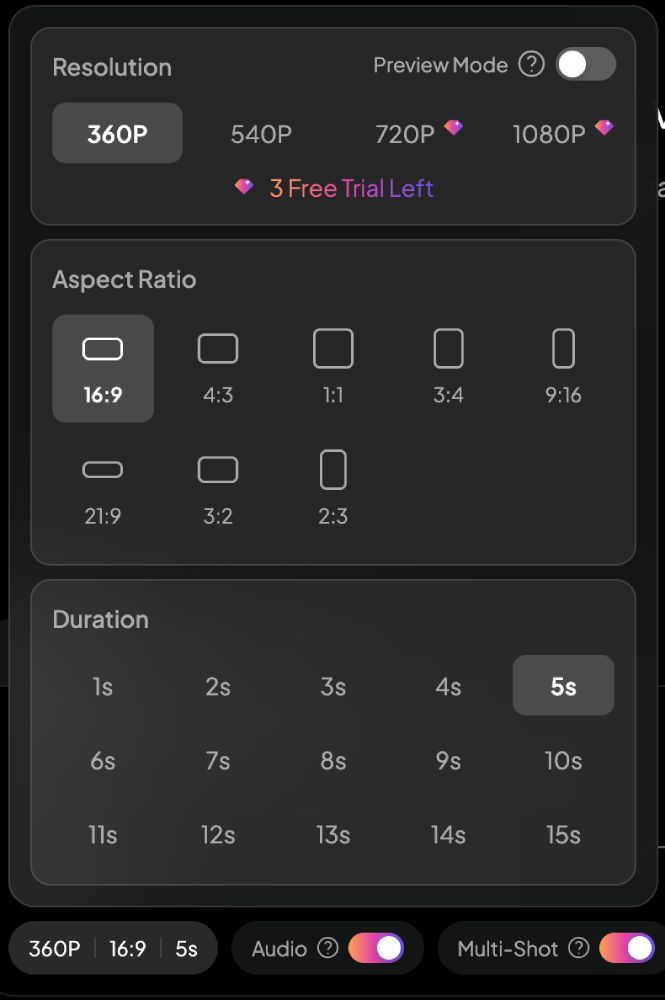
First of all, you can select the resolution for your video. You can choose between 360p, 540p, 720p, and 1080p. The two highest resolutions, however, are only available with the paid plans. 

After that, you can determine your video’s aspect ratio. PixVerse offers a range of landscape and portrait formats that also work well for social media. When animating your artwork, you likely want to choose a ratio that matches the dimensions of your original work. 

Last but not least, you can set the video duration to anything from one to 15 seconds, depending on how much action you want to fit into the scene.

PixVerse AI lets you choose from a whole range of video output settings

PixVerse AI lets you choose from a whole range of video output settings

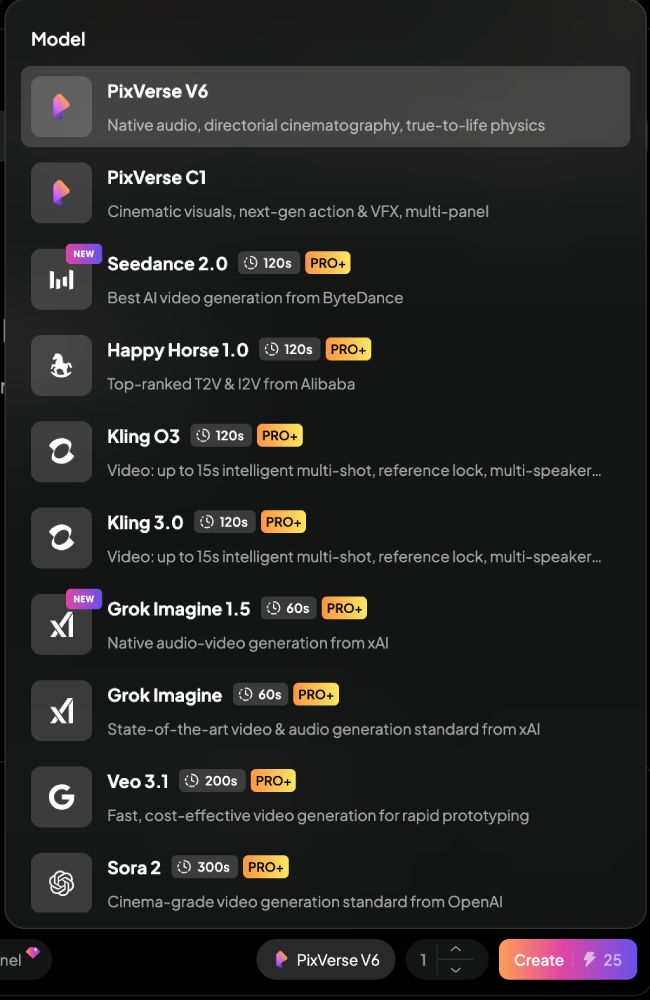
Now comes the fun part—and one of the most important parts, too: selecting the video model you want to use.

When you’re on the free plan, you can choose from three PixVerse models: PixVerse V6, PixVerse C1, and PixVerse V5.6. Those models are pretty powerful, despite being free, and I also used them for the video I generated for this tutorial. 

Nevertheless, there’s a whole range of more advanced models that focus on cinematic and true-to-life output, including Veo 3.1, Sora 2, Grok Imagine, and Seedance 2.0. 

You can check out my full Seedance 2.0 tutorial here: → How To Use Seedance 2.0: Step-By-Step Tutorial For Beginners

PixVerse AI gives you access to all its advanced models when you subscribe to the Pro Plan at $24 per month. This definitely pays off if you want to generate a whole lot of videos every month and download them in high resolution.

PixVerse's Pro Plan gives you access to a whole range of advanced video models

PixVerse’s Pro Plan gives you access to a whole range of advanced video models

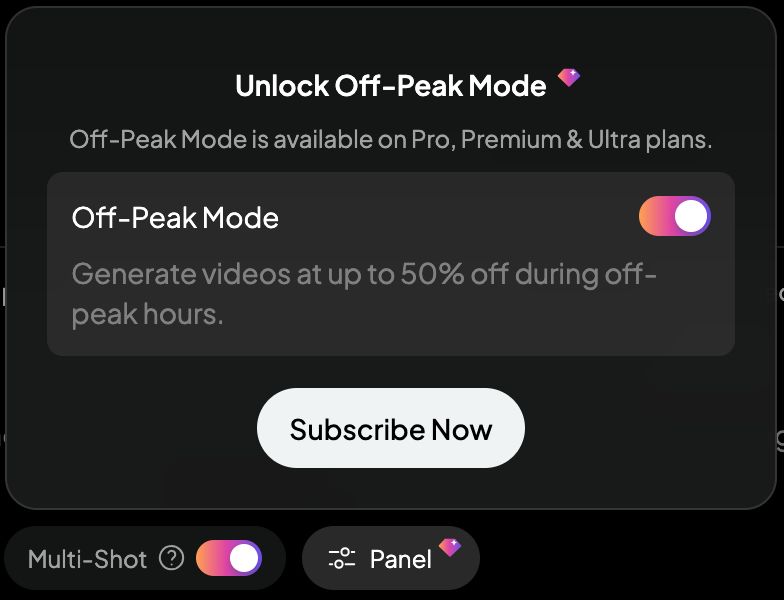
Last but not least, you can generate videos in Off-Peak mode by clicking on the “Panel” option. 

This mode allows you to generate videos at half the cost during off-peak hours when the service is less busy and pays off when you generate a larger number of videos every month.

That said, Off-Peak mode is a really cool option that you’ll get as well with PixVerse’s Pro Plan.

Off-Peak mode lets you to generate videos at half the cost during off-peak hours

Off-Peak mode lets you to generate videos at half the cost during off-peak hours

PixVerse AI video generation results

Now, here’s the video PixVerse AI generated based on the artwork I uploaded and the prompt I typed in. 

Remember, my prompt was pretty simple—still, the result turned out really impressive: 🥰

Pastime‘ turned into a movie using PixVerse AI

Pastime” is not the only artwork I turned into a video using PixVerse AI.

Below, you can see my work “Teatime” transformed into a real little motion story using the following prompt:

“Make the lady grab the cup of tea, stand up and walk elegantly out of the room.”

Teatime‘ turned into a movie using PixVerse AI

Even better, PixVerse AI lets you generate videos from multiple reference images (up to 7), instead of just a single image.

To try this feature, I wanted to combine my two previous artworks in the following way:

“Make the lady in the first image grab her cup of tea, walk elegantly out of the room over to the lady in the second image and sit down with her on the couch.”

The result doesn’t disappoint:

Teatime‘ and ‘Pastime‘ turned into a movie using PixVerse AI

Here’s another artwork of mine, “Desert Rose,” animated with PixVerse AI using the following super-simple prompt: 

“Animate the veil and the skirt of the woman.”

Pastime‘ turned into a movie using PixVerse AI

In conclusion: What is the best AI image-to-video generator?

There are heaps of AI video generators on the market, and the number is growing. However, not all tools are equal. 

A good AI video generator should have a number of features:

  • It delivers great results. Not perfect, but impressive to look at.
  • It’s easy to use. You shouldn’t have to craft overly complex prompts every time you animate an image.
  • It has a good prompt understanding and largely follows your instructions, while letting the visuals stay true to the original.
  • It offers a free plan or at least a free trial; no one wants to buy a pig in a poke.
  • It’s affordable, offering enough daily or monthly credits so you don’t constantly have to worry about credit usage.
  • It gives you access to state-of-the-art video models, including recent models like Seedance 2.0, Kling 3.0, and Veo 3.1.

Based on my testing, I can confidently say that PixVerse AI excels in these areas. The results I obtained were visually impressive and highly accurate in rendering the original artwork.

The tool’s prompt understanding is extremely strong, and even simple prompts can lead to impressive results. Generation speeds are fast, and even the free plan includes powerful features!

» Lots of good reasons to give PixVerse AI a free try!

PixVerse AI Features at a Glance ✨

AngieG. – The Person behind the Pictures
HI Y'ALL!  

My name is Angie and I’m a self-taught digital artist. On this blog, I am sharing my knowledge and discussing the best software and hardware for different artistic needs. My desire is to offer options for all creative stages and budgets so that everyone can follow their dream and create art!

LET'S CONNECT:
SHARE THIS POST:

This Post Has One Comment

  1. AI Music Generator

    I like that you focused on the workflow side of turning artwork into AI-generated video instead of just showing flashy results. A lot of artists are curious about animation tools but get overwhelmed by where to start, so breaking the process into steps makes it feel much more approachable. It would also be interesting to hear how you balance keeping your original art style intact while using AI motion tools.

Leave a Reply