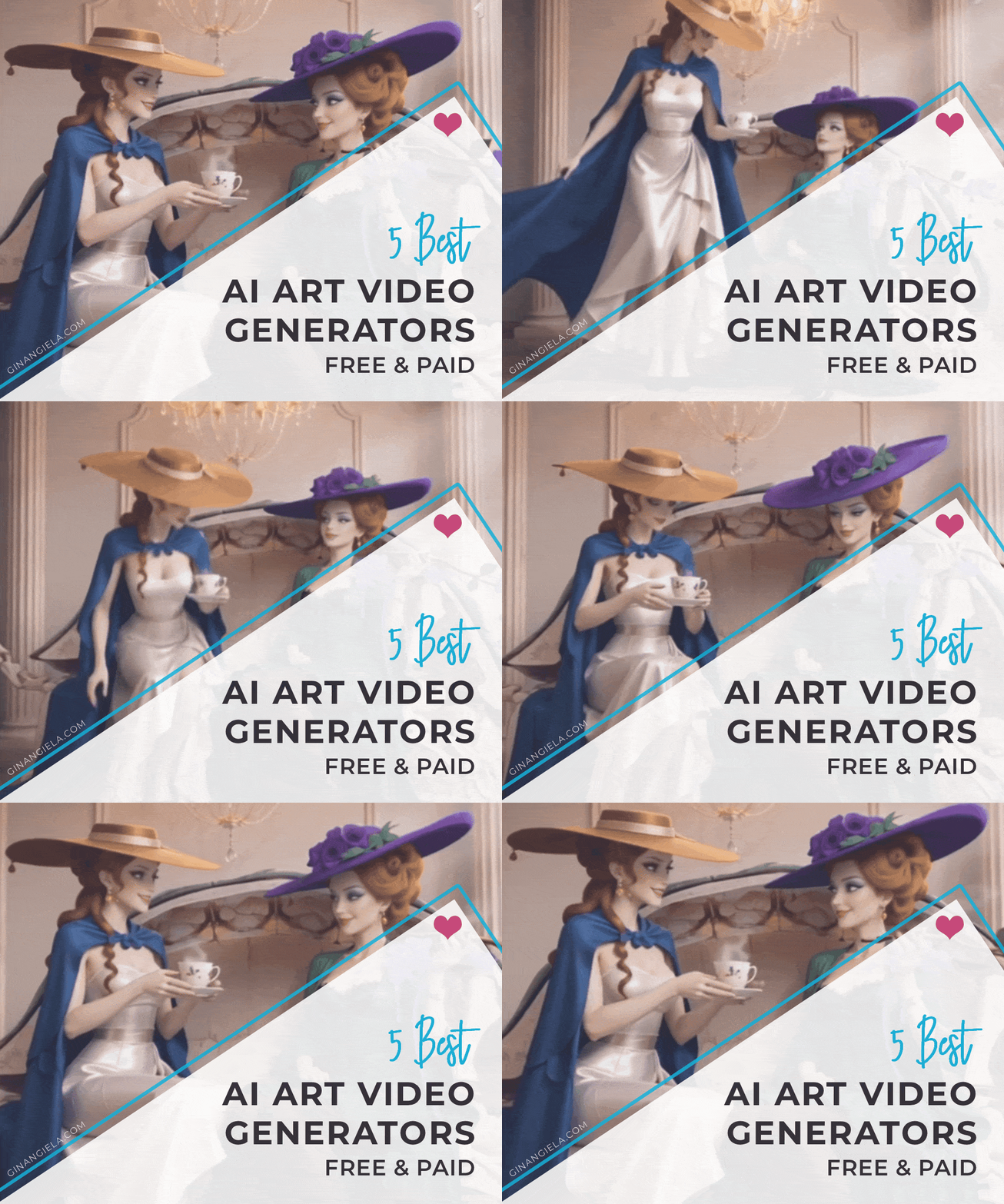
Animating still artwork is a great way for artists to bring their creations to life. All you need is an AI image-to-video generator—that’s how easy it is in the age of artificial intelligence. However, not all tools are the same. I’ve picked out the three best AI art video generators that offer great performance and affordable prices—and have free plans!
Animating static artwork is a great way to grab attention on social media, pep up your portfolio, or simply have fun bringing your creations to life.
Whatever your reasons may be for animating art, it’s important to choose a tool that gives you great results, is easy to use, and offers fair pricing plans.
I've recently tested a dozen tools, and these are the three that made it on my list of the best AI art video generators!
The image-to-video generators I’ve included in the list have both free and paid plans, and in this review, I’m going to take a deep dive into what to expect from each app, where they excel, and where they still fall short.
Here we go!
3 Best AI Art Video Generators (Free & Paid)
PixVerse AI → Best overall AI video generator with highly accurate image-to-video results and powerful features on the free plan.
Adobe Firefly → Beginner-friendly generative AI tool that seamlessly integrates with Adobe apps for images, video, and design workflows.
Google Veo → Advanced AI image-to-video generator with impressive cinematography and strong native audio integration.
3 Best AI Art Video Generators At A Glance:
| AI Video Generator | Why To Get | Pricing Plans (Billed Annually) | More Info |
|---|---|---|---|

|
• Highly accurate image-to-video results • Fast generation speed • Free plan includes powerful features |
• Free plan: available • Standard plan: $8/mo • Pro plan: $24/mo |
Visit PixVerse AI's Website |
|
• Faithful preservation of core visual elements • Seamless integration with Adobe ecosystem • Beginner-friendly user interface |
• Free plan: available • Standard plan: $8.49/mo • Pro plan: $16.99/mo • Pro Plus plan: 20.97/mo |
Visit Adobe Firefly's Website |
|
• High-quality cinematic output • Strong audio integration • Dynamic camera movement and scene flow |
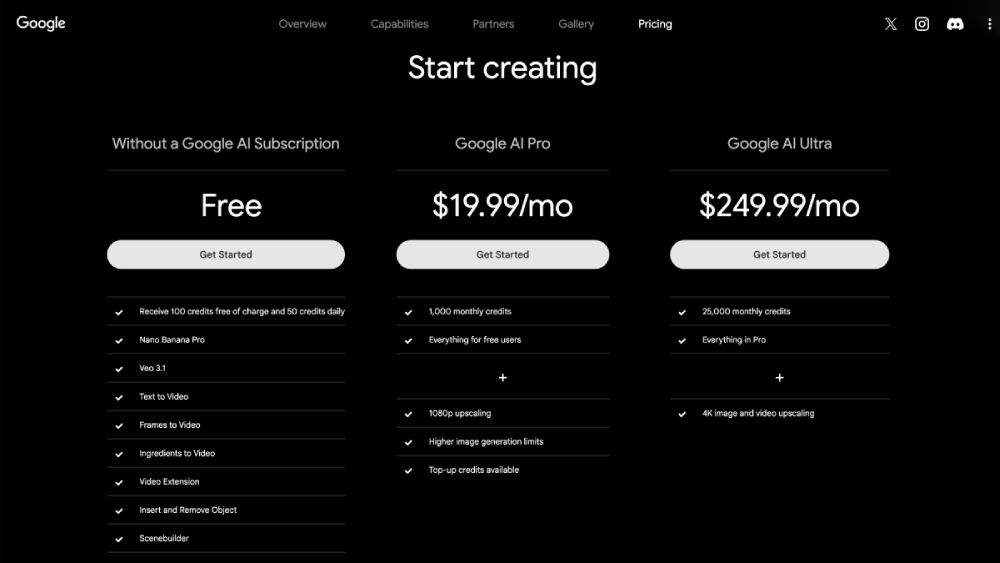
• Free plan: available • Google AI Pro plan: $19.99/mo • Google AI Ultra plan: $249.99/mo |
Visit Google Flow's Website |
Table of Contents: 3 Best AI Art Video Generators
- Stay in touch!
Our Newsletter is packed with creative tips, free tutorials, art tool reviews, and looaads of inspiration!
What Makes a Good AI Art Video Generator?
Let’s be honest, nowadays, there are so many generative art apps out there that it’s not always easy to find the right one.
When turning your artwork into motion, you want a good AI art video generator that provides a range of features:
- It delivers great results. Not perfect, but impressive to look at.
- It’s easy to use. It doesn’t require you to craft overly complex prompts every time you want to animate one of your works.
- It should have a good prompt understanding and largely follow your instructions, while letting the visuals stay true to the original.
- It should offer a free plan or at least a free trial; no one wants to buy a pig in a poke.
- It should be affordable, offering enough daily or monthly credits so you don’t constantly have to worry about token usage.
- It should give you access to state-of-the-art video models, such as Seedance 2.0, Kling 3.0, or Veo 3.1.
Many of the tools I tested didn’t meet these standards. I filtered them out immediately because the quality was below par, prompt understanding was weak, or the subscription plans were so expensive and lacking in free features that they simply aren’t worth it for most casual content creators.
So, with this list, you can be sure you're getting only the top performers: the 3 best AI art video generators for animating your artwork!
How I Tested to Find the Best AI Art Video Generator
I put each AI art video generator on the list to the test twice. First, with a relatively simple task, and then with a more complex one.
For the first test, I used my digital artwork ‘Desert Rose’. The woman in the desert-thunderstorm-like setting wears a long veil and skirt, which is just ideal—and rather simple—to animate.
The prompt I used was intentionally simple:
“Animate the veil and the skirt of the woman.”
‘Desert Rose‘ from my Surreal Stories Collection
The second task I gave each AI image-to-video generator was already more difficult. This time I wanted them to combine two of my artworks into a visual story.
After all, one could think that simple prompts might work with any AI video generator (although, as my test series revealed, they often don’t).
These were the instructions I used to create the movie-like scene from my artworks ‘Teatime‘ and ‘Pastime‘:
“Make the lady in the first image grab her cup of tea, walk elegantly out of the room over to the lady in the second image and sit down with her on the couch.”
3 Best AI Art Video Generators
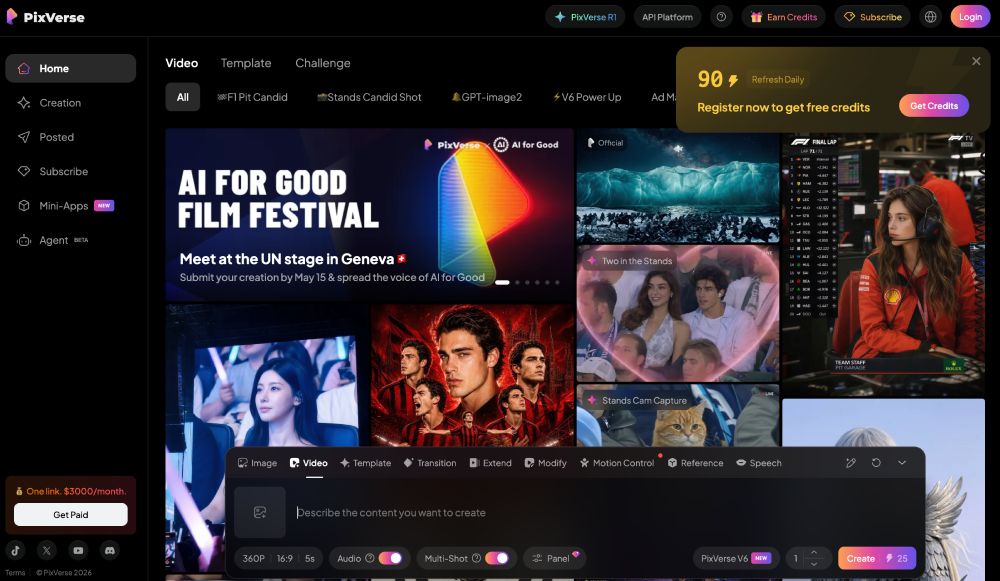
PixVerse AI is the AI art video generator that consistently delivered the best results. I put the app to the test multiple times for my in-depth PixVerse AI review, and it never disappointed.
The animation of ‘Desert Rose‘ only took a few seconds, and the outcome was amazing. The generated video was even accompanied by some dramatic royalty-free music that perfectly matches the scene:
‘Desert Rose‘ animated using PixVerse AI
The animation is astonishingly true to the original. Facial features, the hat’s shape, the corset with bows, earrings, and even the delicate tattoo details have been preserved.
The zoom-out effect and the way PixVerse AI extended the skirt into a stunning train with ruffles impressed me the most.
Despite not being included in the prompt, I like that the app also animated the lightning and vultures in the background, which makes the scene feel more vivid and lively.
The only thing I would point out here is that the hole in the lady’s porcelain chest was animated as part of the hair. But, admittedly, that’s really a hard thing to understand for an AI app…
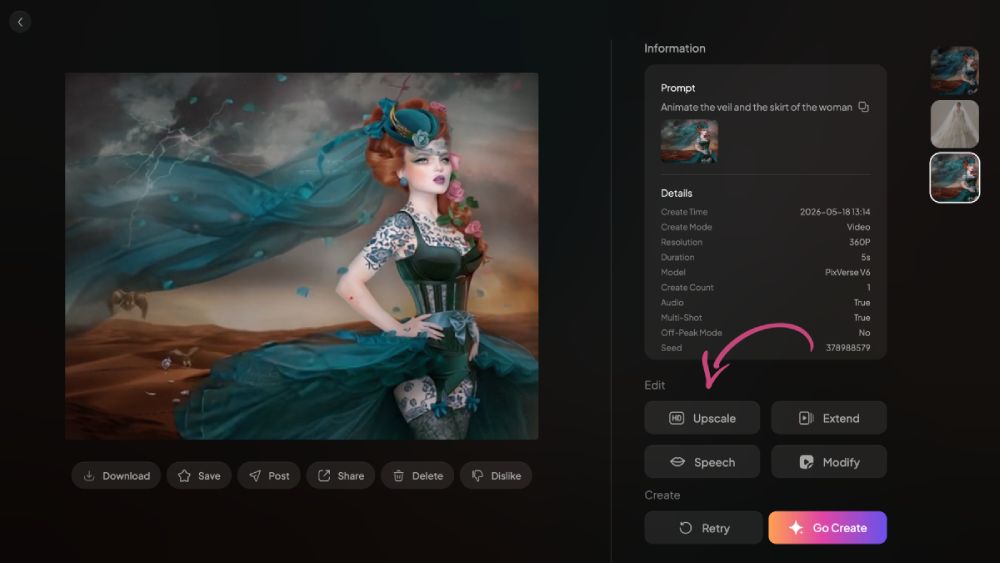
Another unique feature is that PixVerse AI allows you to upscale and download videos on the free plan. It was actually the only app I tested that offered that without requiring a subscription.
Simply click “Upscale” in the right-hand sidebar, and after a couple of seconds, you can download the upscaled version of the video:
PixVerse AI is the only app I tested that offers upscaling without requiring a subscription.
While the regular downloadable video already has a decent resolution of 640 × 496 pixels, the upscaling gives you a high-resolution video file of a whopping 3270 × 2534 px.
That said, PixVerse AI was also one of the few apps I tested that offers multiple formats, including 4:3, while most competitors only support 16:9 or vertical video.
All details are much sharper and colors are more vibrant. However, the increased sharpness also makes a glitch in the eyes more noticeable, which can likely be fixed by hitting “Retry.”
‘Desert Rose‘ animated and upscaled using PixVerse AI
PixVerse AI 2-Keyframe AI Art Video Generation
As for the image-to-video generation with two keyframes, I have to admit the result isn’t as accurate as the single-image animations. Facial features, clothing, and hair reconstruction of the ladies in ‘Teatime‘ and ‘Pastime‘ aren’t as consistent.
In fact, the faces come out a bit anime-like. Nevertheless, the outcome is still impressive—and one of the best I’ve seen!
With some more prompt refinement and a different video model, I’m sure you can achieve more realistic results.
‘Teatime‘ and ‘Pastime‘ combined into a video using PixVerse AI
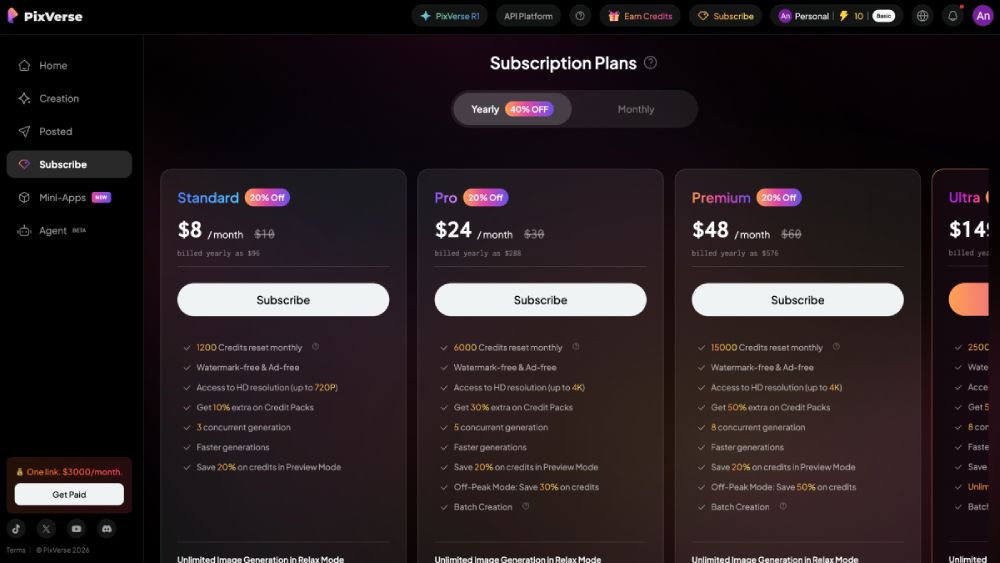
PixVerse AI Pricing
PixVerse AI has some of the most competitive pricing plans I’ve seen among AI video generators.
The free plan gives you a number of free credits every day that are enough for casually generating videos. You can even upscale and download the generated videos. However, you will have PixVerse’s watermark in the upper right corner.
For heavy users, the Pro Plan offers the best value for your money. For $24 per month, you get enough monthly credits for about 300 videos in 4k that you can download without watermarks.
You’ll get access to all advanced video models, including a 40% discount on HappyHorse 1.0.
» Get 40% off the Pro Plan when subscribing for a year.
For everyone who doesn’t want to generate more than around 60 AI videos per month, the Standard Plan at $8 per month may be sufficient. Videos are downloadable, watermark-free, and ad-free.
However, the maximum resolution is 720p. Keep in mind that retries and upscales also count toward your video limit!
» Get 40% off the Standard Plan when subscribing for a year.
What I like about PixVerse AI:
- Fast rendering speeds
- Good image-to-video quality, even on the free plan
- Automatic audio generation
- Allows you to download and upscale videos even on the free plan
- Excellent value for money with paid plans
What I don’t like so much:
- Clips are usually short (around 5–10 seconds)
- Text prompts can sometimes produce inconsistent motion
- Credit usage can become expensive with lots of retries
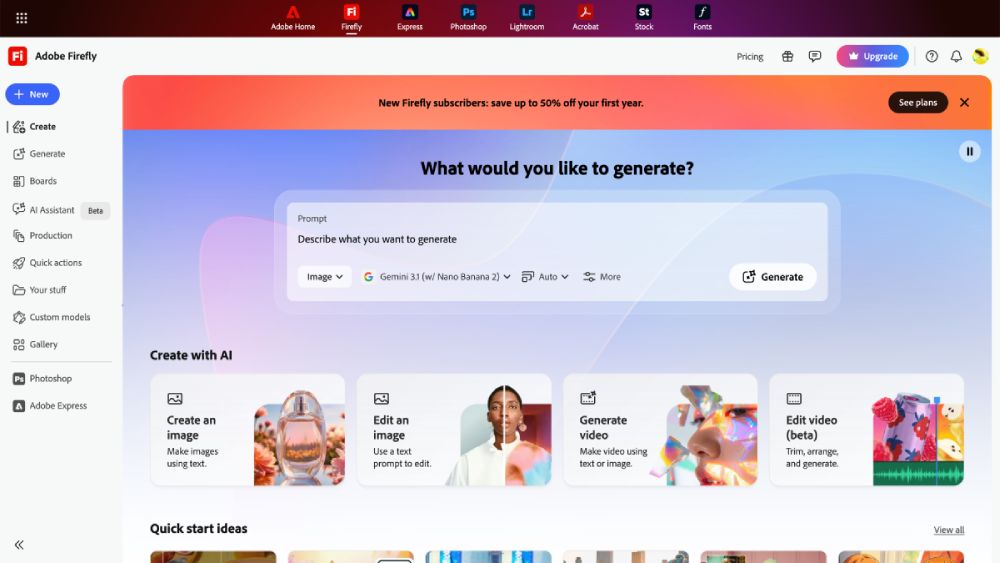
Adobe Firefly is Adobe’s generative AI tool that integrates across its other apps, including Photoshop, Illustrator, Premiere, and Adobe Express.
The interface is clean and beginner-friendly. On the left, you can choose a video model, either Firefly Video (which I used for this generation) or third-party options on the paid plans, such as Veo, Kling, Runway, or Ray.
Below that, you can select the resolution and aspect ratio; video length is fixed at 5 seconds. For my test, I uploaded ‘Desert Rose‘ as a start frame to generate a video from a single image. You can also add an end frame and choose motion effects such as zooming, panning, or handheld movement.
Unlike PixVerse AI, Firefly doesn’t support aspect ratios such as 4:3 or 3:2. Videos are restricted to 16:9 (landscape or vertical) or square depending on the video model, which I see as a drawback when working with artworks of different dimensions. ´\_(ツ)_/`
‘Desert Rose‘ animated using Adobe Firefly
Despite the simple prompt, Firefly produced a surprisingly sophisticated animation, with the character dancing and turning while the veil flows naturally. It even extended the landscape with an old, gnarled tree.
The character has a Disney-like appearance, almost like Ariel from The Little Mermaid. However, details like tattoos, hair, and roses remain faithful to the original.
There are obvious glitches in the number of fingers, although the movement of the hand interacting with the veil is impressively complex for such a fast render.
I decided to give Firefly a second try, adding “animate the veil and the skirt of the woman in a hyperrealistic way” to the prompt to fix the glitches and achieve a more realistic look.
‘Desert Rose‘ animated using Adobe Firefly
This time, Adobe Firefly‘s AI art video generation has an almost ballet-like quality. I like that details such as the facial features, tattoos, corset, rose-adorned hair, and bow-topped hat stay faithful to the original throughout the animation.
The tool also preserved the landscape, moving from the desert setting to the gnarled tree, which adds an eerie feel to the scene. While there are again artifacts in the hands and the bottom part of the skirt, the generation is complex and glitches might be fixed with refined prompts and retries.
Adobe Firefly 2-Keyframe AI Art Video Generation
Let’s move to the combination of the two artworks into one scene. For this AI video generation, I uploaded ‘Teatime’ as a start frame, and ‘Pastime’ as an end frame, this time using the Veo 3.1 model:
Adobe Firefly‘s interface is clean and beginner-friendly.
Well, one thing we can immediately notice is that Adobe Firefly doesn’t have strong prompt understanding. This is a weakness that many AI video generators still have and where PixVerse AI definitely excels.
However, compared to other tools, Firefly did a decent job. Apart from the obvious shortcomings, I like the splash with the petals and butterflies, the movement of the flying parrot and the lady sitting down, as well as details like the chameleon and the hat being preserved.
‘Teatime‘ and ‘Pastime‘ combined into a video using Adobe Firefly
Adobe Firefly Pricing
Adobe Firefly’s free plan gives you limited monthly generative credits for image generation, Generative Fill, and other video features.
You probably get the most out of Firefly by subscribing to its Standard Plan at $8.49 per month (billed annually). You’ll get access to seven advanced video models, including Nano Banana, Kling, and Runway. Depending on the model you choose, you can generate up to 50 videos.
» Get 30% off the Standard Plan when subscribing for a year.
With the Pro Plan, you can generate up to 100 videos monthly with more than 25 video models. The Pro plans also allow you to use Photoshop on web and mobile, as well as Express Premium.
What I like about Adobe Firefly:
- Complex movements can be generated with simple prompts
- Motion styles and references can be used
- Advanced third-party video models available on paid plans
- Seamless integration with other Adobe apps
- Clean and beginner-friendly interface
What I don’t like so much:
- Inconsistent realism (artifacts and glitches)
- Only 5-second videos possible at present
- Only supports 16:9 aspect ratio (landscape or vertical)
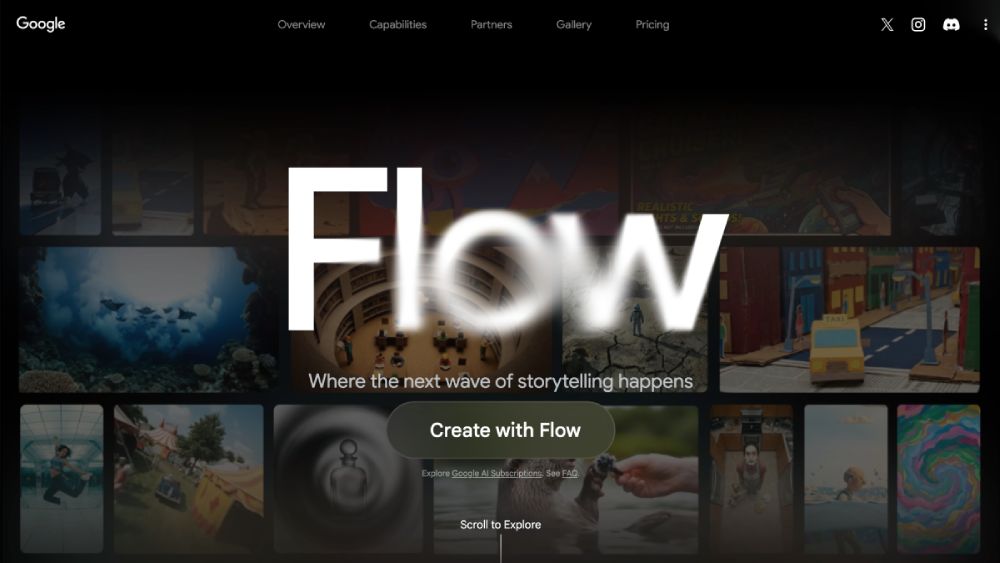
Google Veo is Google DeepMind’s advanced AI video generation tool. It lets you create short cinematic videos from text prompts, images, reference frames, or combinations of all three.
The latest Veo 3.1 version supports native audio generation, vertical video formats, and 4K upscaling. Even though the tool is so advanced, the interface is delightfully simple and straightforward.
You can upload a start and end frame, choose between 16:9 and 9:16 formats, select a quality setting (Lite, Fast, or Quality), and decide how many videos to generate.
Despite being an advanced tool, Google Veo‘s interface is very user-friendly.
I generated two videos for this test:
‘Desert Rose‘ animated using Google Veo (1st version)
‘Desert Rose‘ animated using Google Veo (2nd version)
The results are impressive, including the sound Google Veo natively added to the videos. You hear wind and thunder while the woman’s clothes are naturally flowing in the breeze. That’s what I like the most about these AI art video generations.
My biggest complaint, though, is that the animation doesn’t stay fully faithful to the original. While the extra vultures are a nice addition, the lower part of the lady’s outfit noticeably doesn’t match the original artwork.
In one video, a large bow appeared where the stockings should be. In the other video, the tool added what looks like a peplum. The leg tattoos were also removed or modified, and the bow on the hat was replaced with feathers.
On the plus side, my lady’s facial features remain largely true to the original, as do the upper-body clothing and tattoos. ʕᴖᴥᴖʔ
Google Veo 2-Keyframe AI Art Video Generation
Let’s move on to the videographic combination of my two artworks ‘Teatime‘ and ‘Pastime‘. I have to say upfront that it took me four tries to achieve an acceptable result.
The first two generations Google Veo produced clearly show that the tool still struggles with handling multiple characters in the uploaded images:
‘Teatime‘ and ‘Pastime‘ combined into a video using Google Veo (1st version)
‘Teatime‘ and ‘Pastime‘ combined into a video using Google Veo (2nd version)
Well, I’m sure these two AI art video generations made you smile, too. (>ᴗ<) Apart from the number of ladies in the render (and how some suddenly disappear), there are again mainly deficits in how faithful the clothes were rendered.
Generation 3 and 4 turned out much better in terms of the number of characters. However, there are more shortcomings now in the accuracy of the clothing, turtle skeleton, and setting. Plus, the ladies seem to be looking at each other a bit bitchy—I don’t know why. (◔_◔)
On a positive note, I find the cinematography amazing, as well as the added music and sound effects that perfectly match the scene.
Cinematography is actually what Google Veo stands out for, and with more tries, you might be able to make the AI video generations more faithful. For my test, though, I left it there.
‘Teatime‘ and ‘Pastime‘ combined into a video using Google Veo (3rd version)
‘Teatime‘ and ‘Pastime‘ combined into a video using Google Veo (4th version)
Google Veo Pricing
Google Veo comes with a free version that gives you access to Veo 3.1 Fast, basic Gemini integration, and 50 credits daily for image and video generation. For casual image to video generation, this is usually sufficient.
Google AI Pro costs around $20/month and includes 1,000 monthly AI credits, which is enough to create roughly 50–100 short Veo clips each month, depending on quality and number of retries.
What I like about Google Veo:
- Impressive cinematic output
- Excellent motion design
- Strong audio integration that matches the setting
- Easy-to-use interface
- Multiple vides can be generated at a time
What I don’t like so much:
- Details don’t remain true to original
- Short clip length limits of around 8 seconds
- Only 16:9 or 9:16 format support
Bottom Line: 3 Best AI Art Video Generators
PixVerse AI is the overall best image-to-video generator to animate still artwork. It delivers strong visual fidelity and fast results. It even allows you to upscale and download videos on its free plan.
Adobe Firefly is an excellent option if you already work with other Adobe apps. It integrates seamlessly into the workflow and its clean interface is easy to use, even for beginners.
Google Veo stands out for its impressive cinematography, dynamic camera movement, and native audio. However, it still struggles when it comes to faithfully following prompts and keeping visuals consistent.
My name is Angie and I’m a self-taught digital artist. On this blog, I am sharing my knowledge and discussing the best software and hardware for different artistic needs. My desire is to offer options for all creative stages and budgets so that everyone can follow their dream and create art!