How To Use Seedance 2.0: Step-By-Step Tutorial For Beginners


Disclosure: Some of the links in this post may be affiliate links. If you click on the link and make a purchase, I will receive an affiliate commission at no extra cost to you. As an Amazon Associate I earn from qualifying purchases.

Seedance 2.0 is one of the latest and best video generation models out there. The technology allows you to create highly realistic and cinematic AI video clips from prompts, reference images, or videos. In this step-by-step tutorial, I explain how artists can use Seedance 2.0 to turn their static creations into captivating animations—super-easy and at very affordable prices!

How to use Seedance 2.0: step-by-step tutorial for beginners

AI technology is evolving in quantum leaps. What wasn’t possible a couple of months ago can now be done with a few clicks and a prompt.

While generative AI would only let you create static images not so long ago, you can now use it to turn static artwork into animated video clips. 

I recently tested more than a dozen AI image-to-video generators, and one tool clearly stood out: Seecance 2.0.

Seedance 2.0 is currently one of the best  video generation models on the market.

It lets you create videos from images, text prompts, and/or reference videos and generates highly realistic and authentic output—and all of that can be done super-fast, requiring just 4 easy-to-follow steps.

In this post, I'm showing you how to transform your artwork into cinematic videos in just a couple of minutes using Seedance 2.0 on WaveSpeed AI.

WaveSpeed AI makes high-quality AI video generation accessible to anyone, offering some of the most affordable pricing plans you can find out there.

With that said, here we go!

Seedance 2.0 Step-by-Step Tutorial:

 Our Newsletter  is packed with creative tips, free tutorials, art tool reviews, and looaads of inspiration!

What is Seedance 2.0?

Seedance 2.0 is a relatively new AI video-generation model that was launched by ByteDance (the company behind TikTok) only in February 2026.

It uses a unified multimodal workflow that allows you to generate video and synchronized audio together. This is one of the reasons why Seedance 2.0 has been gaining popularity so quickly.

For a long time, AI video models generated only visuals, and sound had to be added separately. Seedance 1.5 was the first model to support native audio generation.

What makes Seedance 2.0 stand out from its previous version and other video models is that it can:

  • Generate videos from text prompts
  • Animate images into videos
  • Use existing videos as references
  • Incorporate audio references and generate synchronized sound

For example, you can upload a photo of a character, a reference video showing a camera movement, and a soundtrack. All you need to do is combine these inputs with a prompt, and Seedance 2.0 will generate a coherent video clip that brings everything together. ✅

Alongside PixVerse, Veo, Runway, and Kling, Seedance 2.0 currently ranks among the leading multimodal AI video models on the market.

→ 3 Best AI Art Video Generators (Free & Paid)

Featuring strong prompt adherence and cinematic camera control, Seedance 2.0 lets you create high-quality videos up to 1080p, typically of 4–15 seconds long, with minimal input.
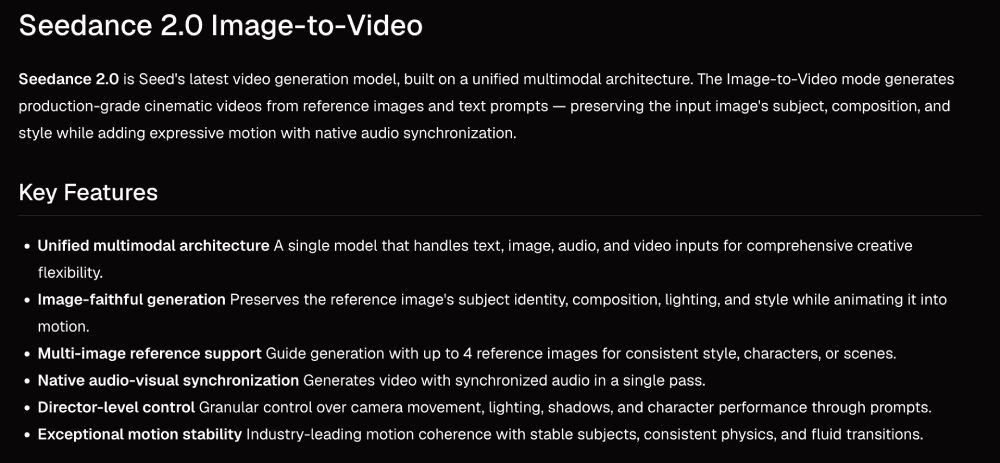
Screenshot of Seedance 2.0 image-to-video generator key features

Screenshot of Seedance 2.0 image-to-video generator key features

Where to get Seedance 2.0?

You can access Seedance 2.0 through WaveSpeed AI. It’s one of the easiest and most affordable ways to use this video model, even for users without prior experience.

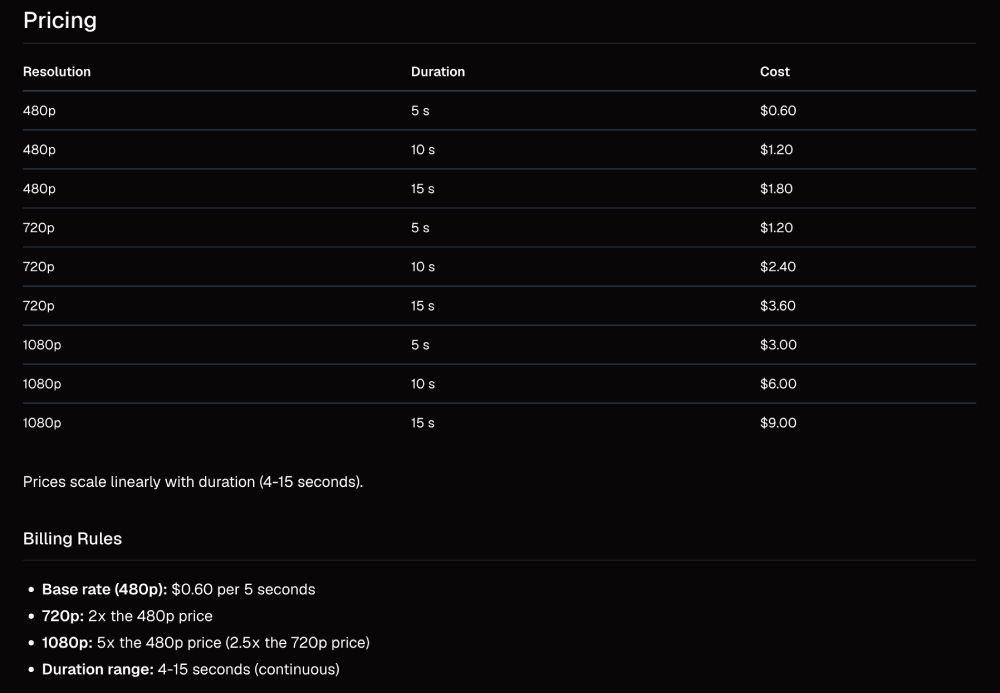
WaveSpeed AI uses a straightforward and cost-efficient pricing model that scales linearly with video length and resolution.

You only pay for the videos you actually generate, meaning you don’t have to sign up for a monthly or yearly subscription. This makes it really easy to calculate the cost before generating a video. 

» You can currently get 15% off Seedance 2.0 on WaveSpeed AI.

In addition, costs are calculated in real dollar values. Many AI video platforms use proprietary credits, which makes it difficult to figure how much each generated video actually costs. 

On WaveSpeed AI, there’s no confusing proprietary credit systems that may not clearly reflect the actual monetary value.

For example, a 5-second 480p clip costs $0.60, exactly half as much as a 10-second clip and one-third as much as a 15-second clip of the same resolution. (You can choose between 480p, 720p, and 1080p for higher-quality productions.)

With these clear metrics at hand, you can easily budget your projects, and the generation fees are really affordable for anyone.

If you’re not a heavy commercial user who creates videos in bulk every month, this pricing model is the most cost-effective option for occasional users.

If you want to generate AI videos more than occasionally, I recommend checking out PixVerse AI.

Screenshot of WaveSpeed AI’s Seedance 2.0 pricing model

Screenshot of WaveSpeed AI’s Seedance 2.0 pricing model

👏 Benefits of WaveSpeed AI's Pricing Model at a Glance

  • No subscription required: You only pay for what you generate.
  • Low entry barrier: A 5-second 480p clip costs only $0.60.
  • Transparent pricing structure: No credit-based systems; you can calculate the price of any video in actual dollars.
  • Easy budgeting with clear pricing rules, depending on resolution and clip length.

🎥 » You can try Seedance 2.0 on WaveSpeed AI free here.

Share on pinterest
Pinterest
How to use Seedance 2.0 Tutorial

How To Use Seedance 2.0: Step-By-Step Tutorial For Beginners

It’s really easy to create videos with Seedance 2.0 on WaveSpeed AI. However, to avoid wasting credits on failed attempts, it’s important to follow an organized and cost-effective workflow.

Here’s an easy 4-step video generation process you can follow:

STEP 1: Access the Platform

First of all, you want to access the Seedance 2.0 user interface on WaveSpeed AI. 

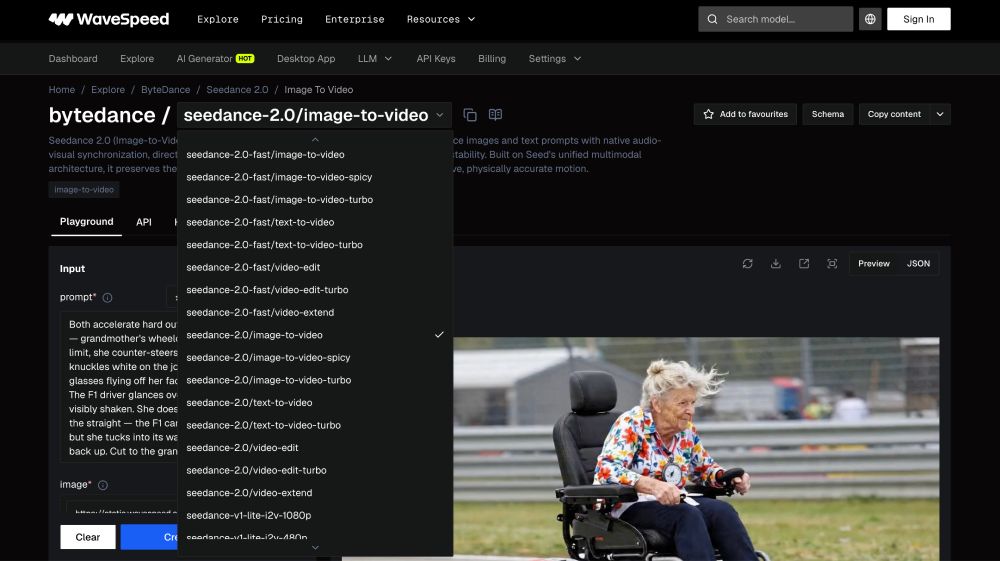
At the top, next to bytedance, you can select the appropriate Seedance model, depending on how you want to generate a video.

You can choose from image-to-video, text-to-video, and other variations. For this tutorial, I’m choosing the Seedance 2.0 image-to-video generator.

Select the appropriate Seedance 2.0 model for your video type

Select the appropriate Seedance 2.0 model for your video type

At some point, WaveSpeed AI will require you to register for a free account if you haven’t done so yet— at the latest when you want to upload reference media like images or videos.

That’s why I recommend signing up for a free right away to avoid any interruptions during the creation process.

STEP 2: Upload Reference Media

Seedance 2.0 lets you generate a video based on a prompt alone, but you can also use reference images and videos. Likewise you can upload audio files for voice consistency, motion, or background music to control the output more precisely.

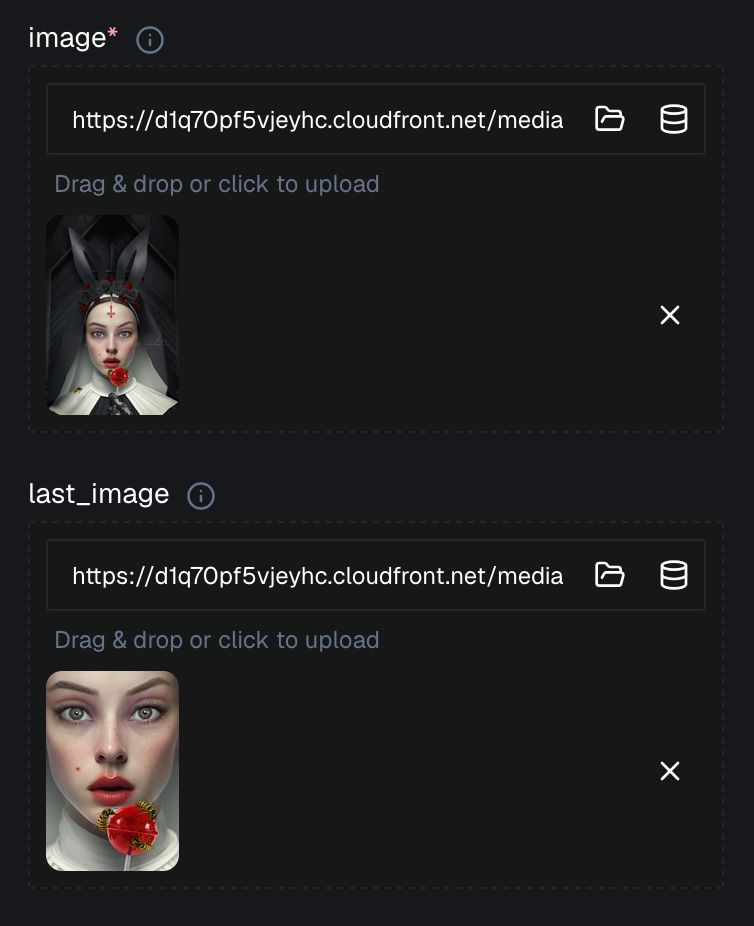
In this tutorial, I want to animate artwork “Faithful Bunny.” That’s why I’m uploading the final piece as the start frame, and a close-up of it as the end frame:

Using my artwork “Faithful Bunny” as start and end frame to turn it into video with Seedance 2.0

Using my artwork “Faithful Bunny” as start and end frame to turn it into video with Seedance 2.0

STEP 3: Craft Your Prompt

The prompt is always the most important factor when it comes to generating media with AI. It basically makes or breaks the outcome. 

To avoid wasting credits, it’s worth putting some thought into crafting your prompt before you start the actual video generation.

The prompt doesn’t have to be complicated, though. You can use natural language to describe the video scene you want to create.

You can as well use the @ symbol to directly tag your uploaded assets and tell the tool how to use them in the scene. For example, you can have the clip start with the first image you uploaded (“@image”) and then zoom in on the second (“@last_image”).

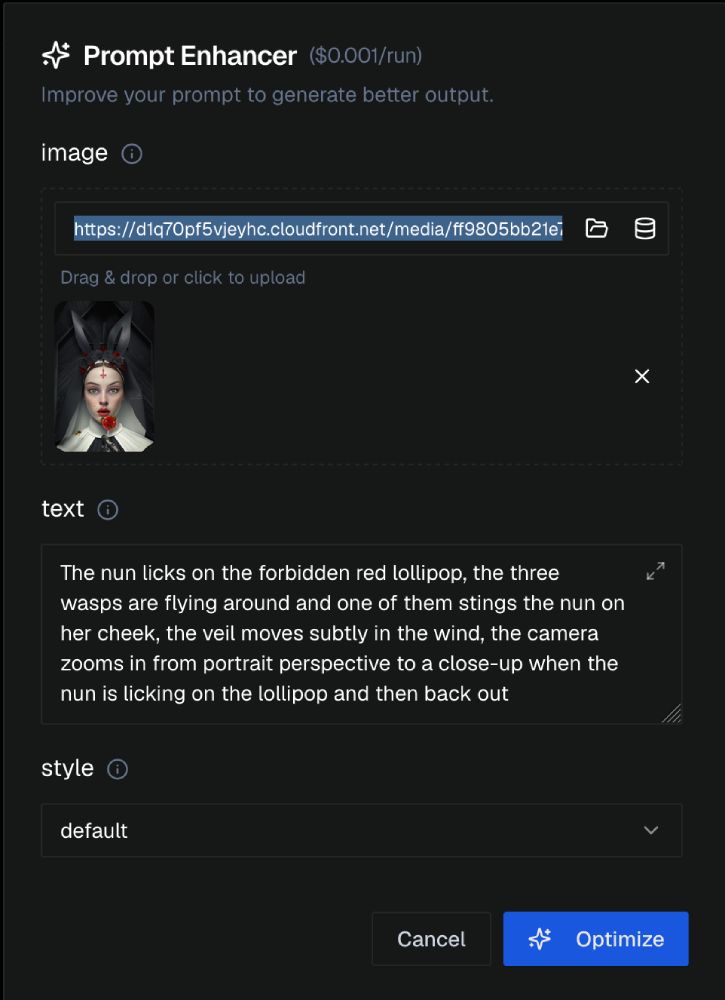
One way to achieve good results is to draft out your prompt first and then use WaveSpeed AI’s built-in prompt enhancer or ChatGPT to improve it.

WaveSpeed’s prompt enhancer costs $0.01 per run ,  which is nothing, but I just wanted to mention for completeness. ☺️

You can use WaveSpeed AI’s native prompt enhancer to improve the wording

You can use WaveSpeed AI’s native prompt enhancer to improve the wording

I personally jotted down quickly how I wanted the animation to come out, and then used ChatGPT to enhance my prompt.

After some tweaking, this is the final prompt I used for this demonstration:

The nun slowly tastes the lollipop with a curious, conflicted expression while three wasps circle around the candy in continuous motion. A gentle breeze subtly lifts and ripples the edges of her veil and habit, creating natural movement. As she licks the lollipop, the camera smoothly pushes in from a portrait-framed medium shot to an intimate close-up, emphasizing her expression and the bright red candy. One of the wasps suddenly lands and stings her on the cheek, prompting a brief, authentic reaction of surprise and discomfort. The remaining wasps continue buzzing around her. After the sting, the camera gradually pulls back to the original portrait composition. Cinematic lighting, shallow depth of field, realistic textures, smooth camera movement, highly detailed facial expressions, natural wind effects, photorealistic, dramatic yet slightly whimsical atmosphere.

STEP 4: Configure Video Settings

With your prompt polished and all reference media uploaded, you can select your preferred video settings.

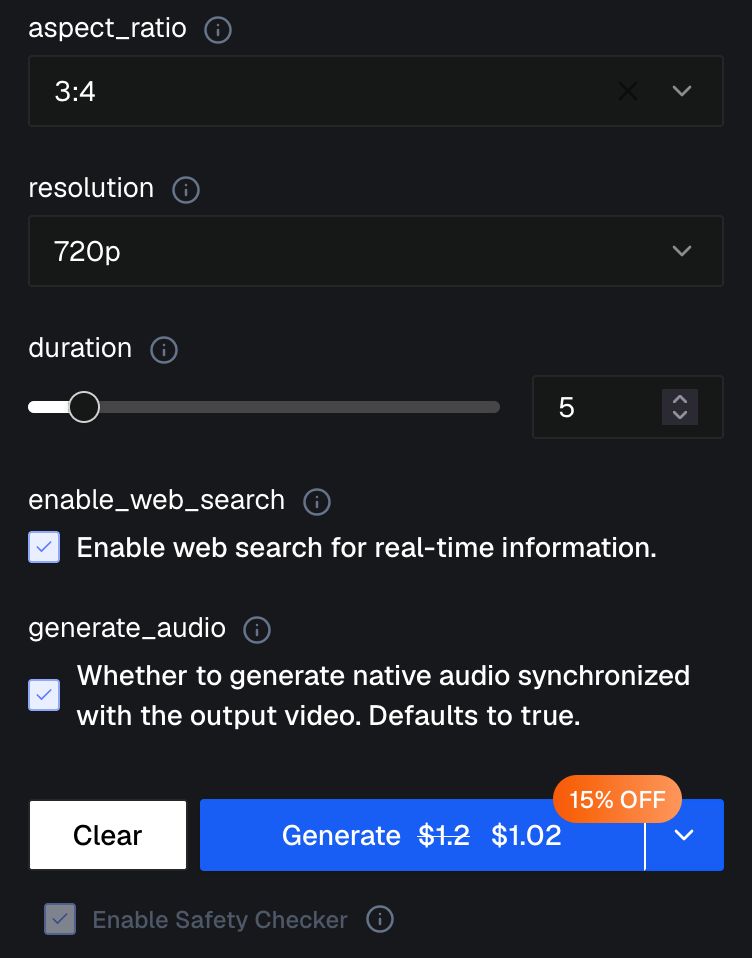
You can choose from various aspect ratios, from square to different portrait and landscape formats. There’s also a 16:9 format for YouTube and a 9:16 format for social media content like Instagram Reels or TikToks.

The tool supports three output resolutions (480p, 720p, and 1080p), and video lengths can be anything from 4 to 15 seconds.

Keep in mind that each of these settings affects the cost of the video generation. You can always check the current price in dollars on the button at the bottom before creating your video.

You can also turn on native audio generation and web search, if you want the model to be able to access up-to-date information on the internet. I kept both options enabled. 

Once you’re ready, hit “Generate” and give Seedance 2.0 a few minutes to create your video.

Select the settings for the video you want to generate with Seedance 2.0

Select the settings for the video you want to generate with Seedance 2.0

The video only took a couple of minutes to generate, and this is the result I got. I think it looks absolutely amazing, especially with the sound! 🥰

Faithful Bunny” turned into video with Seedance 2.0 on WaveSpeed AI (sound on! 📢)

Faithful Bunny” turned into video with Seedance 2.0 on WaveSpeed AI (converted to GIF)

Is Seedance 2.0 really that good?

Well, if you ask me, I personally find that Seedance 2.0 is beyond amazing. I’m genuinely impressed by the video it generated from the artwork I uploaded, especially as the generation only cost around a dollar. 🙌

The result is incredibly realistic, from the flowing veil and bunny ears to the way she looks down at the lollipop before tasting it.

More impressively, the wasp sting appears in the exact same spot as in the original artwork, and even the freckles from the source image are preserved. It’s really striking.

A relatively simple prompt, refined with ChatGPT, was enough to produce this impressive and highly realistic video animation!

You can do the same. You can try Seedance 2.0 free here.

For comparison, to show you how good Seedance 2.0 actually has become, I animated the same artwork, using the same prompt, but this time with Seedance V1 Pro Fast.

The difference in video quality is obvious:

Faithful Bunny” animated using Seedance V1 Pro Fast on WaveSpeed AI

The results you obtain with Seedance 2.0 are repeatable, consistently turning out equally well. Here I animated my artwork “Desert Rose“:

Desert Rose” turned into video with Seedance 2.0 on WaveSpeed AI

Seedance 2.0 on WaveSpeed AI: Feature List

Can Seedance 2.0 be used for free?

When you sign up for WaveSpeed AI, you get enough free credits to test Seedance 2.0 before paying anything.

And through WaveSpeed AI’s pay-per-video model, Seedance 2.0 becomes one of the most affordable ways to generate AI videos.

There’s no need for a subscription: you only pay for the videos you generate.

That said, with videos starting at just $0.60, it’s hard to go wrong. Seedance 2.0 is definitely worth the money and worth a try!

» You can try Seedance 2.0 on WaveSpeed AI FOR FREE here.

AngieG. – The Person behind the Pictures
HI Y'ALL!  

My name is Angie and I’m a self-taught digital artist. On this blog, I am sharing my knowledge and discussing the best software and hardware for different artistic needs. My desire is to offer options for all creative stages and budgets so that everyone can follow their dream and create art!

LET'S CONNECT:
SHARE THIS POST:

Leave a Reply