Readymag vs Adobe Portfolio: Best Platform For An Artist Portfolio?


Disclosure: Some of the links in this post may be affiliate links. If you click on the link and make a purchase, I will receive an affiliate commission at no extra cost to you. As an Amazon Associate I earn from qualifying purchases.

An appealing portfolio presentation is key for every artist. Setting up a portfolio site should be easy, fast, cost-efficient, and still create a professional site whose look and feel you can tailor to your liking. I tested two popular portfolio builders on exactly that: Readymag vs Adobe Portfolio. By the end of my in-depth comparison, you’ll know whether Adobe or Readymag is the better fit for displaying your art portfolio online!

Readymag vs Adobe Portfolio best platform for artist portfolio

An appealing portfolio display is essential for any artist who wants to showcase and sell their art.

If you have no place for fans and collectors to go to view your work, it’s almost impossible to create awareness and make sales on a consistent basis.

A neat portfolio helps you showcase your creations in the best way possible, and it also helps you make the best impression when you apply for gallery exhibitions, art residencies, and other art-related events.

An art portfolio can be a good alternative to an artist website because it’s usually easier and faster to set up than an entire website—even though website builders like Pixpa make it really easy to build your own website.

→ Pixpa Review: A Good Website Builder For Artists?

In this post, I'm comparing Readymag and Adobe Portfolio to help you decide which platform is best for creating a stunning online art portfolio!

I’ll look at each platform’s features, ease of use, customization options, templates, pricing, and overall value for artists.

I’ll dive into the pros and cons of each platform so you know exactly which is the better fit for your creative needs. Here we go!

Readymag vs Adobe Portfolio for Artists:
Quick Overview

Adobe Portfolio — 4.9/5 ⭐⭐⭐⭐⭐
Adobe Portfolio is my top choice for artists who want a professional portfolio that’s quick and easy to build. It offers beautiful templates, flexible customization, and SEO tools. Its integration with Behance, Lightroom, Photoshop, and other Adobe apps, and affordable pricing make it the better overall value for most visual artists.

Readymag — 3.3/5 ⭐⭐⭐
Readymag tailors to various professions, not only creatives, and offers unique portfolio layouts to experiment with. However, its interface can be confusing and the better templates are paid. While it comes with a free plan, important features such as SEO tools and custom domains require a subscription that costs slightly more than its competitor, while offering fewer features.
 
Readymag
Adobe Portfolio
Ease of Use
Readymag
4/5
4/5
Adobe Portfolio
5/5
5/5
Templates
Readymag
3/5
3/5
Adobe Portfolio
5/5
5/5
Customization
Readymag
4.5/5
4.5/5
Adobe Portfolio
5/5
5/5
Integrations
Readymag
2/5
2/5
Adobe Portfolio
5/5
5/5
Pricing
Readymag
3/5
3/5
Adobe Portfolio
4.5/5
4.5/5
Overall Rating
Readymag
3.3/5
3.3/5
Adobe Portfolio
4.9/5
4.9/5

Readymag vs Adobe Portfolio: Table of Contents

 Our Newsletter  is packed with creative tips, free tutorials, art tool reviews, and looaads of inspiration!

Readymag vs Adobe Portfolio: In-Depth Comparison

As an artist setting up an online portfolio, you want your portfolio builder to have several key features. First of all, it should provide you with a range of professional-looking templates to choose from.

The templates should  be easy to customize and responsive, meaning they should look equally good on desktop, tablet, and mobile devices.

It should feature image galleries, ideally also video and audio support. You also want to have a custom domain, or at least a domain that includes your artist name, and is easy to remember.

Ideally, it also provides you with SEO tools and analytics to optimize your portfolio for getting found in search engines and track its performance.

I’ve tested Readymag and Adobe Portfolio on exactly these features, and there was clearly one platform that consistently performed better. 

By the end of my in-depth comparison, you'll know exactly whether Readymag is good for a portfolio, or whether Adobe Portfolio is the better choice. Let's get into it!

Ease of Use

Readymag
4/5
4/5
Adobe Portfolio
5/5
5/5

READYMAG VS ADOBE PORTFOLIO

Which makes it easier for artists to create a portfolio?

• Adobe Portfolio User-Friendliness

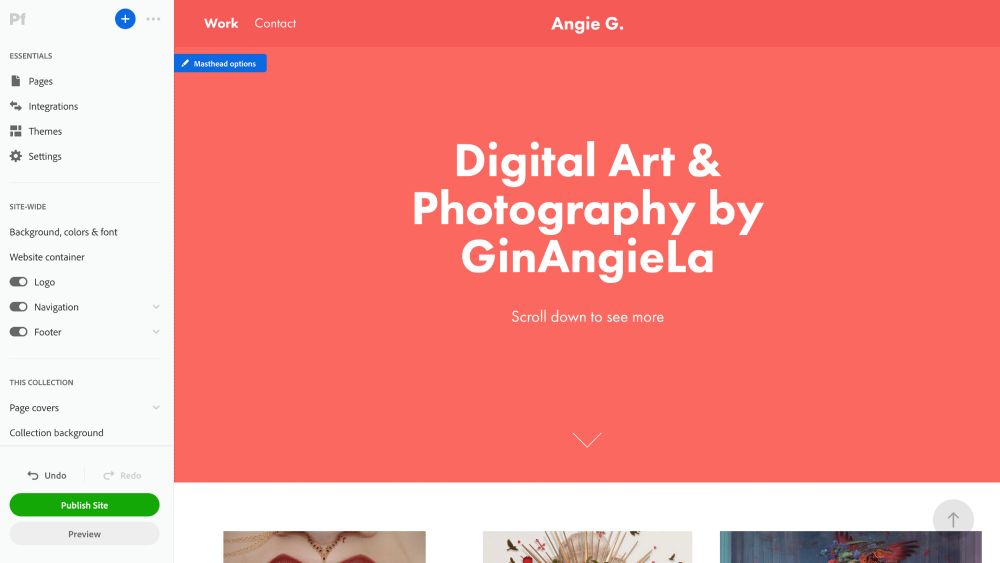
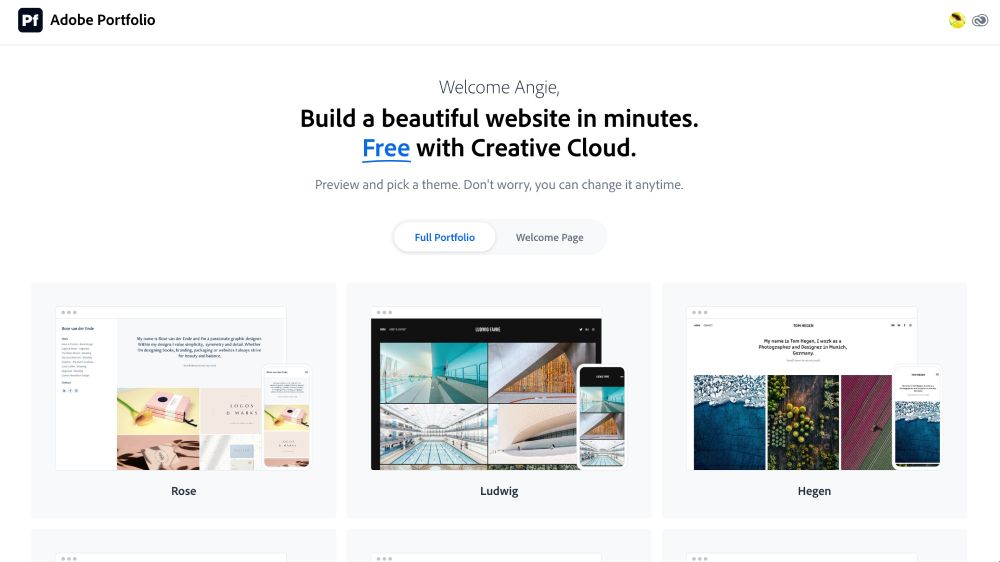
Adobe Portfolio makes it really easy to get started. If you already have an account for an app like Photoshop or on Behance, you don’t even need to log in separately. Once you open the website, you’ll already see your avatar in the top-right corner and can directly start setting up your portfolio site.

Adobe Portfolio lets you choose between a full portfolio site and a simple welcome page. A welcome page is basically a one-pager that provides people with a quick overview of your work and yourself as the artist.

A full portfolio usually consists of several pages, including contact and about pages, as well as various pages to display your body of work. For my review, I went with a full portfolio page.

Adobe Portfolio‘s onboarding process makes it easy to get set up quickly.

• Readymag User-Friendliness

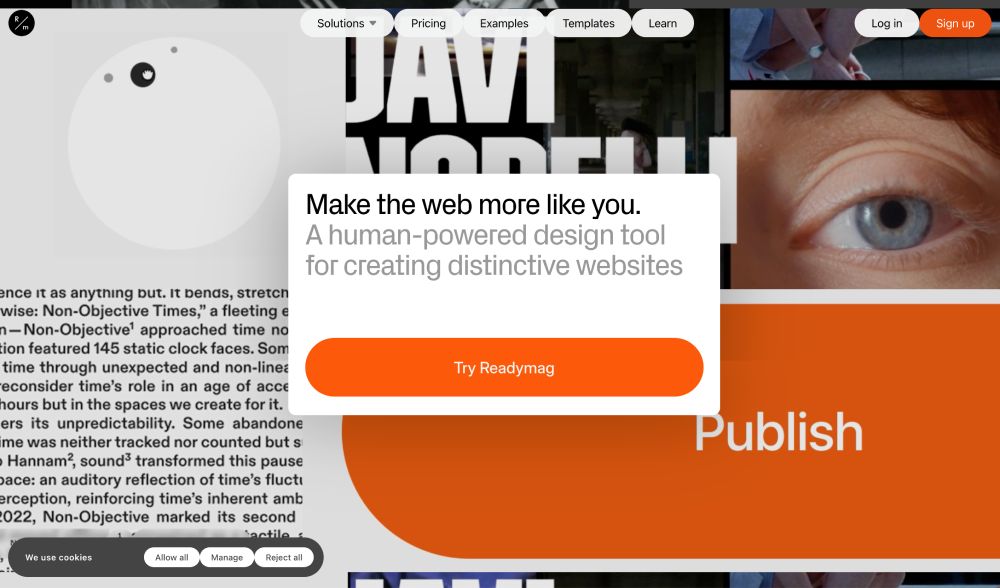
When I first accessed Readymag, the website felt pretty cluttered and confusing. At the top of the page, you’ll see a range of templates, buttons, screenshots of settings and text snippets, and a huge screenshot of an orange “Publish” button float by. 

That’s a myriad of visual information that’s really hard to put into context and not really informative when it comes to the features the platform actually offers. 

A bit further down, you’ll find more information about what kind of websites you can create on Readymag, which includes portfolios, studio websites, presentations, landing pages, passion projects (?), and graduate projects.

Readymag's website felt cluttered and confusing at first glance.
Readymag’s website felt cluttered and confusing at first glance.

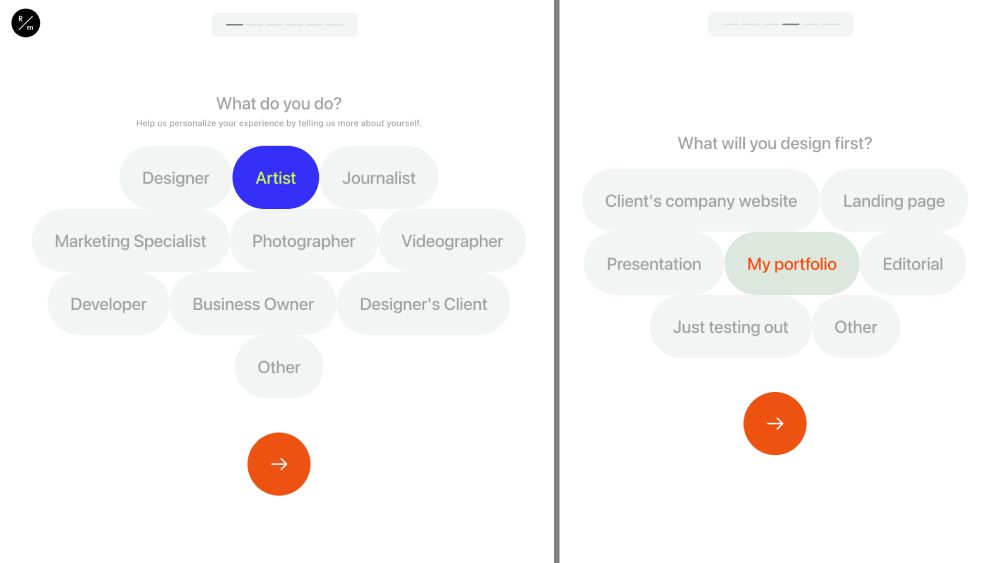
Readymag’s onboarding process features a number of questions regarding what you do and what you want to create. 

Among others, the questionnaire asks you about what you do. I’m an artist, photographer, and a business owner, for example. However, you can only choose one option, which I didn’t find very useful. I’m sure there are also overlaps for many creatives from other other areas, too.

Readymag also offers a questionnaire-style onboarding process.

Once you’ve made your selections, both Adobe Portfolio and Readymag send you to their library where you can choose a template for your portfolio, which we’re going to come to in the next section.

Adobe Portfolio’s onboarding offers the smoother experience. The platform can pull your existing Adobe app or Behance login and gets you straight into choosing between a full portfolio or a one-page welcome site.

Readymag feels more cluttered and disorganized. Its questionnaire forces you into a single “what you do” category that doesn’t reflect how multi-faceted most creatives actually are.

For ease of getting started, Adobe Portfolio clearly wins this round!

Templates

Readymag
3/5
3/5
Adobe Portfolio
5/5
5/5

READYMAG VS ADOBE PORTFOLIO

Which platform makes your art portfolio look more stunning?

• Adobe Portfolio Templates

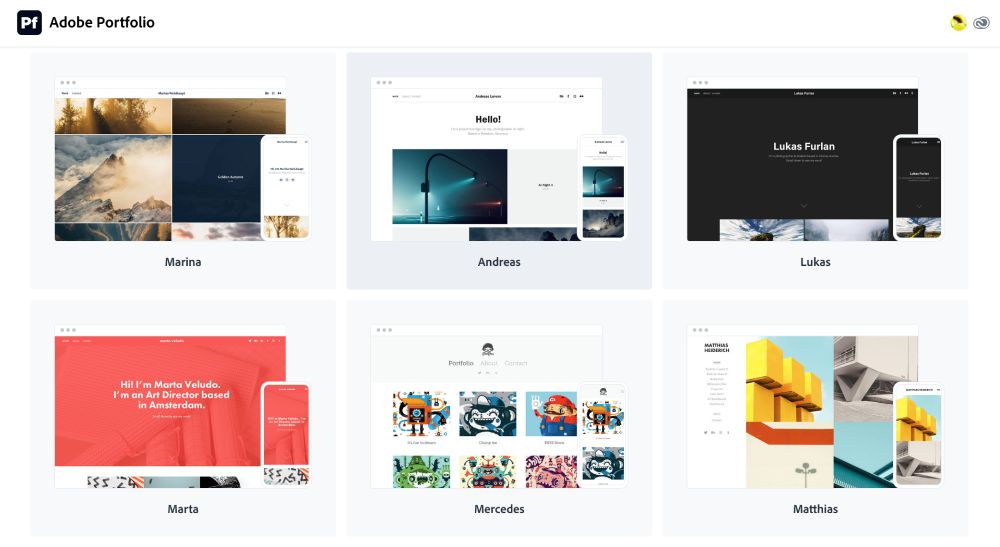
Both Adobe Portfolio and Readymag work with template-based portfolio designs. That means you don’t need to build a portfolio on your own. You simply choose a template you like and fill it with your own content. 

At the time of writing, Adobe Portfolio offers around a dozen full portfolio templates and a handful of welcome page templates. I personally found that all portfolio templates are clean and beautifully designed, with lots of white space that puts your artwork into the limelight.

For this test, I chose the “Marta” template. Other templates I particularly liked include “Marina” and “Matthias.”

Adobe Portfolio features clean and beautifully designed full portfolio and welcome page templates, which you can use at no additional cost.

• Readymag Templates

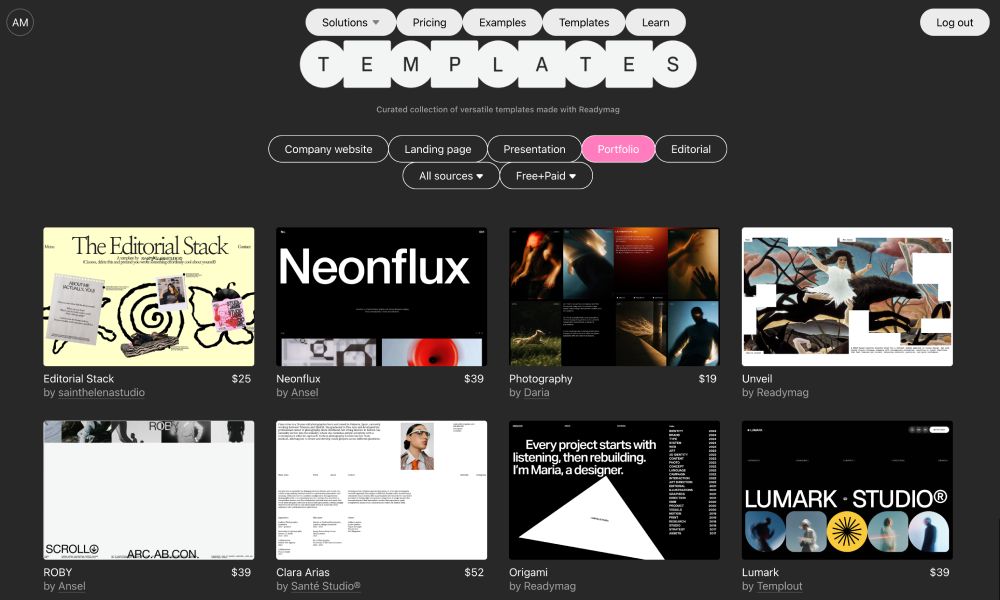
Readymag’s template library features templates for the various purposes the platform caters to. Despite having explicitly stated that I’m an “artist” in the previous questionnaire, I was redirected to the default library.

From there, I could select the Portfolio selection, which seemed to be the best fit for my endeavor.

The most significant difference from Adobe Portfolio is that most Readymag templates are paid. Prices range from $20 to $70, which add on top of the subscription costs, should you choose to stick with Readymag.

Readymag's template library covers a wide range of use cases, but most options are paid.
Readymag’s template library covers a wide range of use cases, but most options are paid.

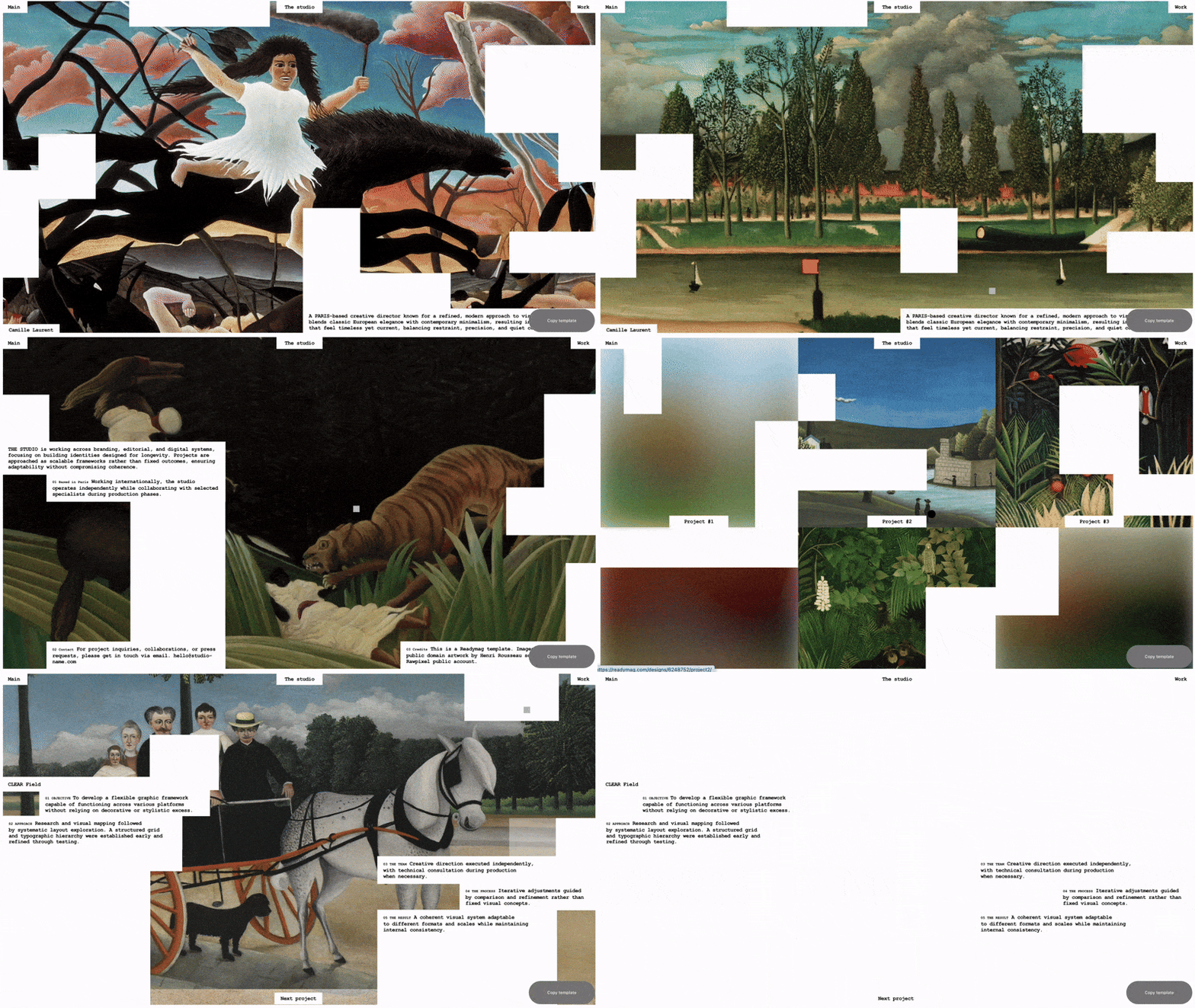
The first free option that came up was the “Unveil” template, so I clicked that one. My first thought was that there had to be a problem with my WiFi connection.

In fact, the template is so scattered with white rectangles and random text blocks that seem to pop up wherever you hover the mouse. 

Not exactly how I imagine a well-designed portfolio site, but tastes are different and you can choose another template that’s more to your liking. 

I ultimately chose the “Sleek” template for my test, which is also a free option.

I found some of Readymag's templates extremely confusing, definitely not putting your work in the best light.
I found some of Readymag’s templates extremely confusing, definitely not putting your work in the best light.

After selecting a template from either Adobe Portfolio or Readymag, you can start customizing it. More about the customization options in the next section.

Adobe Portfolio takes the win on template design. Its templates are clean, polished, and let your artwork take center stage. They’re all included free with your subscription. 

Readymag’s library is more hit-or-miss: some templates feel cluttered and chaotic, and while there are free options, many of the better designs come at an extra cost on top of your subscription.

Customization Options

Readymag
4.5/5
4.5/5
Adobe Portfolio
5/5
5/5

READYMAG VS ADOBE PORTFOLIO

Which platform can you better tailor to your preferences?

• Adobe Portfolio Customization Options

As I mentioned above, I’ve chosen Adobe’s “Sleek” template for this test and it turned out incredibly easy to customize. What I liked most is that, if you already have a Behance profile, all of your projects are automatically being imported over to Adobe Portfolio. 

For me, that meant I basically didn’t have to load up anything. Everything was there, including final artworks, progress shots, and text I had already prepared on Behance. That was extremely convenient because everything was basically ready to publish out of the box. 

I’ve chosen Adobe’s “Sleek” template for this test and it turned out incredibly easy to customize.

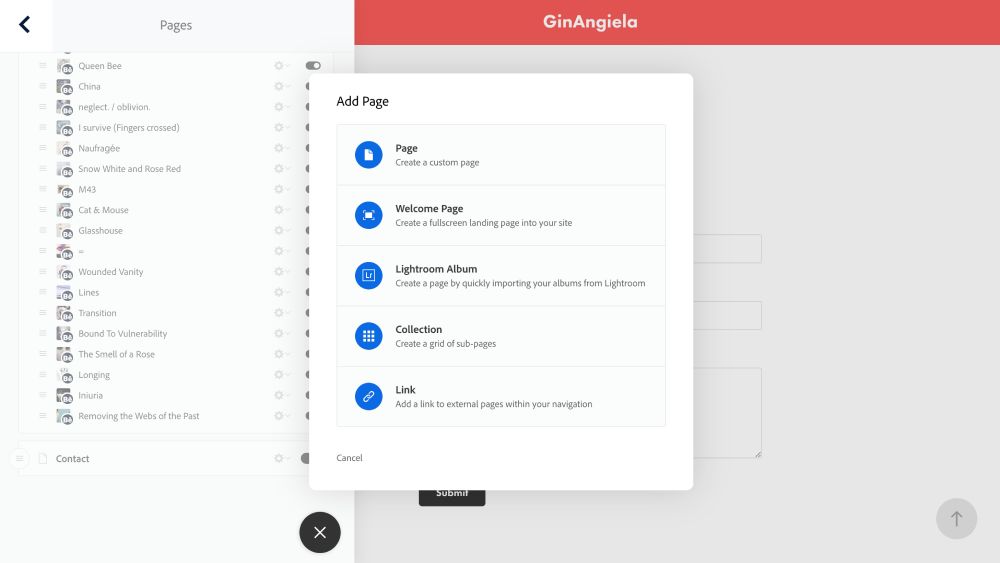
But even if you don’t have a Behance profile or a Lightroom album to automatically import your work, you can easily create new portfolio pages or a collection page with a click of the plus icon in the top-left corner of the screen.

You can easily create new portfolio pages or a collection page with a click of the plus icon in the top-left corner of the screen.

You can easily create new portfolio pages or a collection page with a click of the plus icon in the top-left corner of the screen.

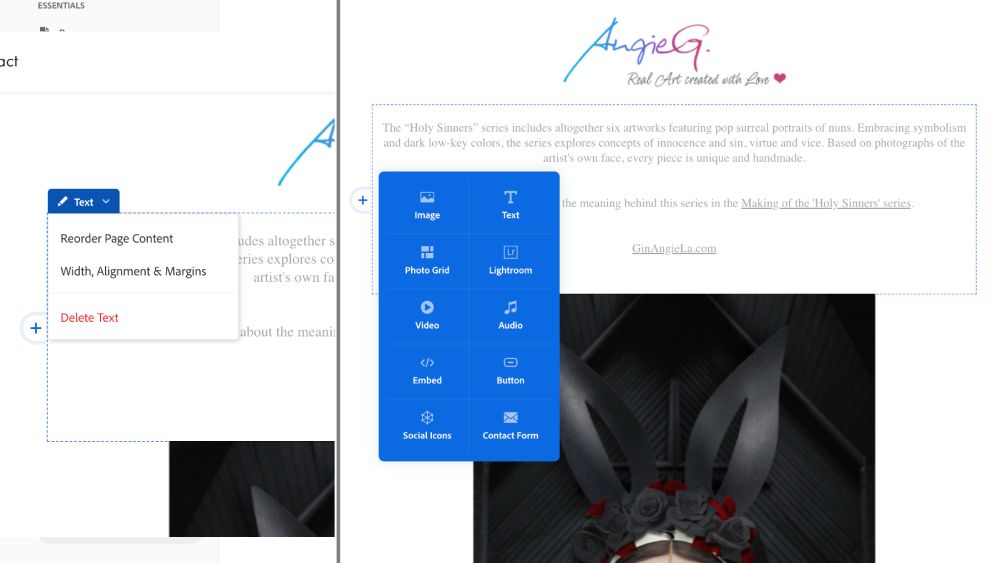
To change or enter any text, you can simply click on the text area and edit everything on-screen. You can reorder text blocks, adjust width, alignment, and margins.

Likewise, you can add more elements, including images, videos, Lightroom galleries, audio, buttons, social icons, and even contact forms. Adobe Portfolio’s customization options are truly versatile.

Adobe Portfolio's customization options are truly versatile.

Adobe Portfolio‘s customization options are truly versatile.

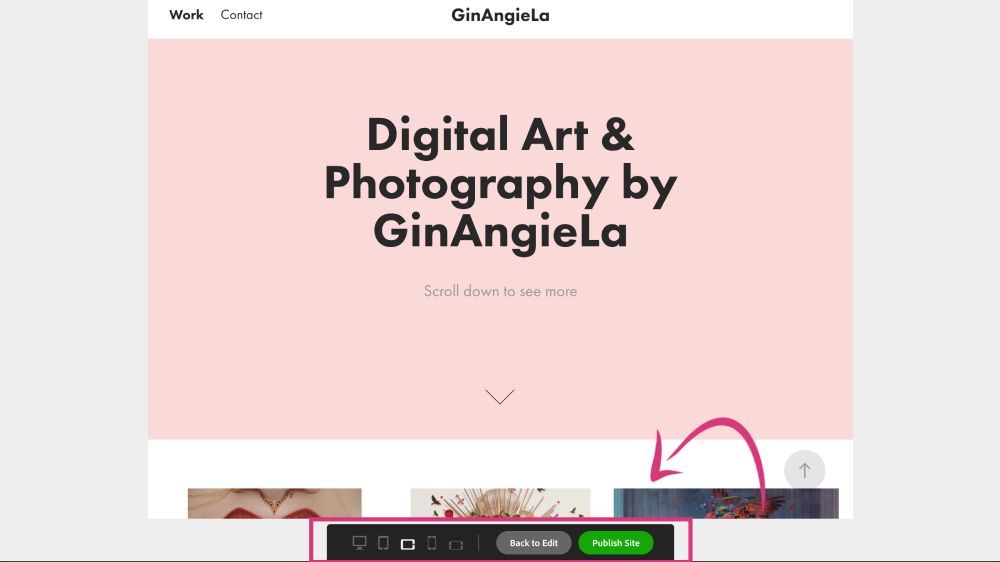
To make sure your portfolio site looks good on all devices, you can check the preview options. You can toggle between desktop, tablet, and mobile view.

I like that the preview options show you how your site looks on both horizontal and vertical tablet and mobile devices because people might want to scroll through your content on horizontally. So Adobe’s preview options are really helpful to make sure everything looks fine.

I like that the preview options show you how your site looks on both horizontal and vertical tablet and mobile devices
I like that the preview options show you how your site looks on both horizontal and vertical tablet and mobile devices.

But there’s much more when it comes to customization options. Adobe Portfolio lets you choose your own custom domain.

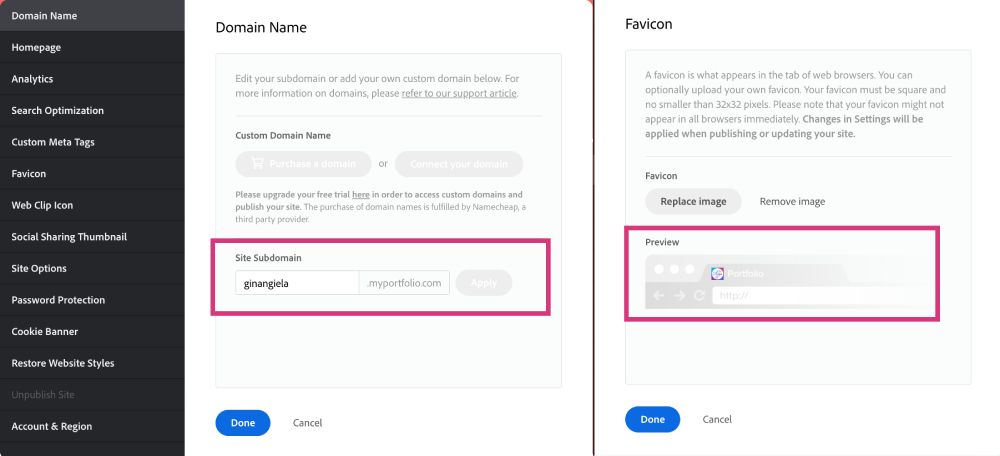
For example, you can enter your artist name, and then people will be able to find your work at ginangiela.myportfolio.com. That’s an easy to remember URL you can also use on business cards or in your artist bio. 

Another way to customize the URL to your portfolio is to purchase a separate domain, e.g. from Bluehost, and connect it to your Adobe portfolio.

What’s more, Adobe is one of the few portfolio builders that lets you upload a customized favicon. A favicon is a website’s logo that you see on your browser tabs and that makes it easy to sort out the right tab from the various ones you might have open at the same time.

So, instead of having Adobe’s native “Pf” portfolio icon displayed, you can upload your very own custom favicon—which is a nice-to-have and makes your portfolio appear more professional.

Adobe Portfolio offers a custom URL and lets you upload a favicon.

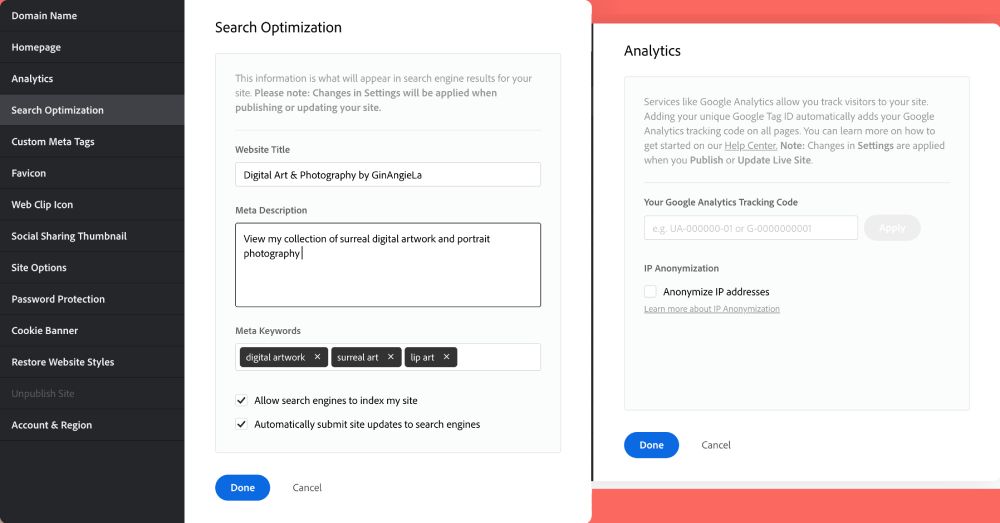
Another thing I particularly like about Adobe Portfolio is that it offers you search engine optimization and analytics. 

I know that many creatives don’t like the techy stuff behind getting your website found online, but optimizing your site to pop up in the search results so people can actually find it is extremely important. 

You can enter a title, meta description, and relevant keywords to help your portfolio rank in search engine results pages. And, you can also automatically submit site updates to search engines. That’s a really useful and unique feature of Adobe Portfolio. 

Likewise, you can connect Google Analytics to track performance and figure out where your portfolio still needs improvement to get found more quickly online.

Adobe Portfolio offers search engine optimization tools and Google Analytics connection.

• Readymag Customization Options

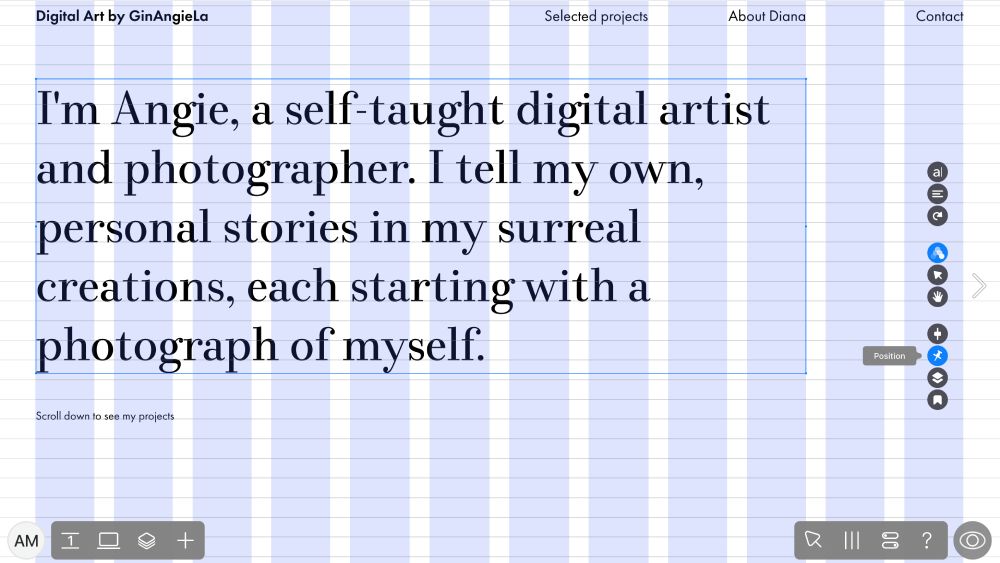
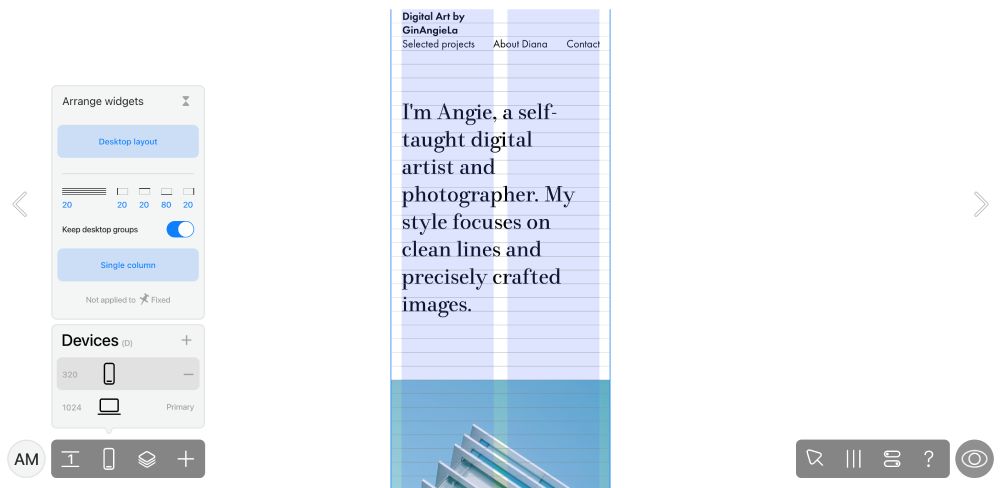
When it comes to customizing text, images, and other elements, Readymag basically works the same way as Adobe Portfolio. You can modify text on-screen, simply by clicking on the text block. Similarly, you can make adjustments like alignment, font transformations, and reorder sections.

The main difference is that you can’t simply import your work from another platform. You’ll have to upload every project manually, one by one, and add images, descriptions, and other elements.

Readymag lets you customize text, images, and other elements just like Adobe Portfolio.

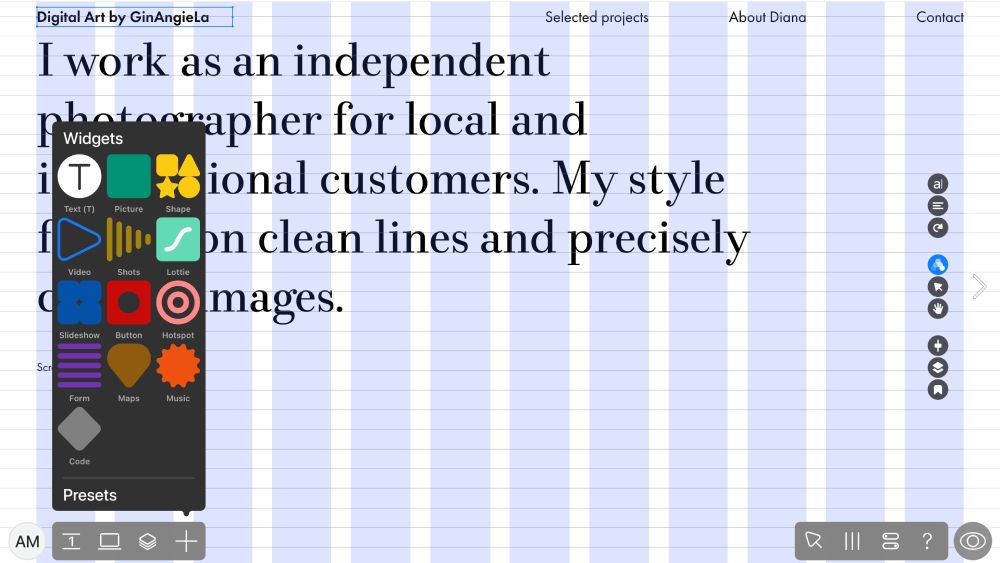
Just like Adobe Portfolio, Readymag provides a number of widgets that you can add to your pages. This includes videos, audio, shapes, maps, slideshows, lotties, forms, buttons, and custom code. 

Readymag provides a number of widgets that you can add to your pages.

Readymag provides a number of widgets that you can add to your pages.

Readymag also offers responsive preview for mobile and tablet, although the tablet preview was a bit hard to find. I first thought preview was only available for mobile, because you’ll have to click the plus icon to get to tablet preview. 

That’s kind of confusing, and I don’t understand why not all preview options appear in the menu right away. That said, mobile previews are only available in vertical format and not horizontal, as opposed to Adobe Portfolio.

Readymag also offers responsive preview for mobile and tablet
Readymag also offers responsive preview for mobile and tablet.

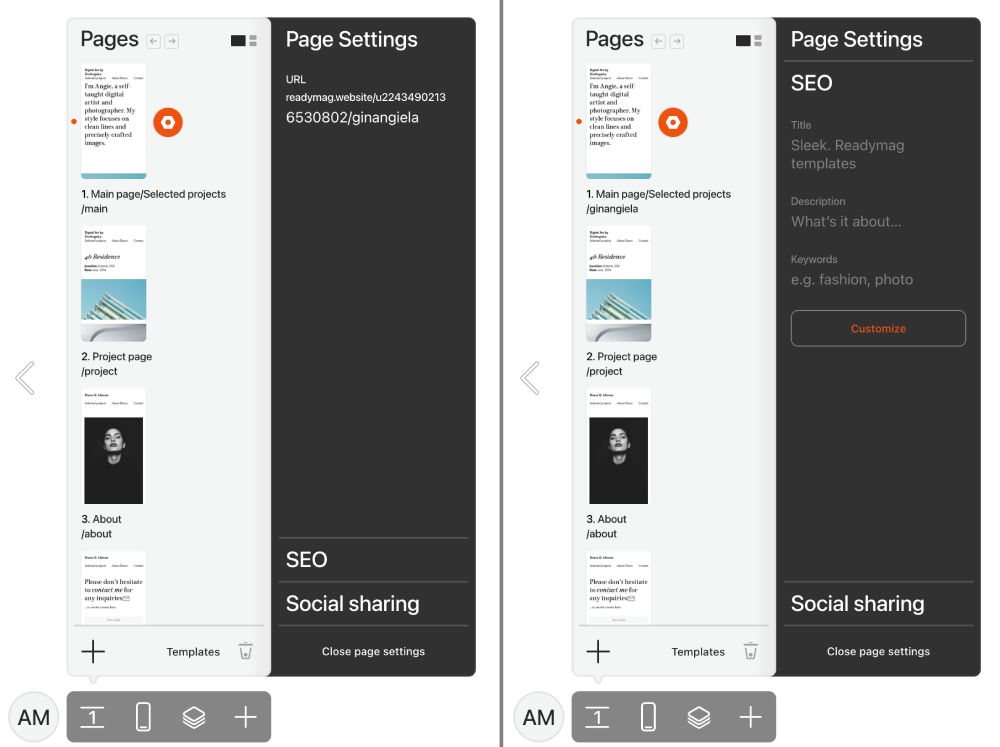
Very much like Adobe Portfolio, Readymag offers a number of SEO settings. However, Readymag doesn’t offer the option of getting a subdomain as Adobe does. 

If you don’t want to connect a custom domain, you’ll have to deal with lots of numbers in your URL that can’t be deleted. All you can do is add your artist name after them, for a bit of customization. 

There are also SEO settings for page title, meta description, and keywords. However, you can only edit and use them when you subscribe to one of Readymag’s paid plans. Those plans also let you connect Google Analytics to track your site’s performance.

Readymag offers a number of SEO settings, but you can't get a subdomain like on Adobe Portfolio. 
Readymag offers a number of SEO settings, but you can’t get a subdomain like on Adobe Portfolio.

Both Adobe Portfolio and Readymag offer comparable customization options, such as text editing, widgets, and responsive previews, as well as SEO tools. Adobe Portfolio wins on convenience; the Behance import saves you tons of setup time, and custom subdomains, and favicon upload. 

It’s a close call, but if built-in convenience matters to you, Adobe Portfolio takes a slight lead.

Integrations

Readymag
2/5
2/5
Adobe Portfolio
5/5
5/5

READYMAG VS ADOBE PORTFOLIO

Which platform can you better tailor to your preferences?

• Adobe Portfolio Integrations

Being part of Adobe’s ecosystem, its portfolio integrates with a wide range of apps. As I already mentioned above, Behance is one of these integrations, because it was acquired by Adobe in 2012.

If you’ve already set up your Behance profile, with project images and descriptions, all of this content will be automatically imported to your Adobe Portfolio. I found this very convenient because it saves you a lot of time uploading images and writing.

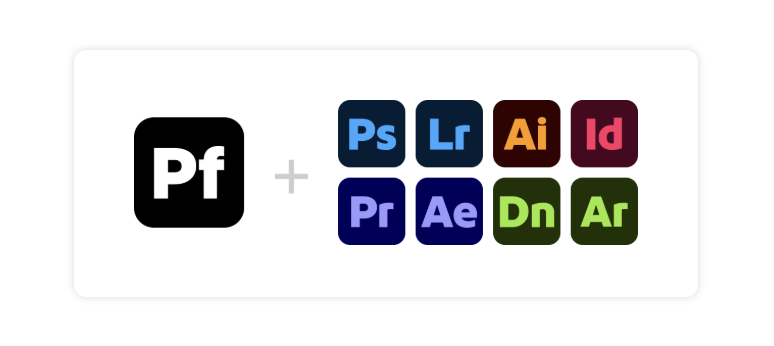
Other Adobe apps that integrate with Portfolio include Photoshop, Lightroom, Illustrator, InDesign, Premiere, After Effects, Dimension, and Aero.

When you’re working with Lightroom, for example, you can directly publish photos and albums to Adobe Portfolio. Likewise, portfolio sites can use Adobe Fonts as part of the Creative Cloud integration.

Another very useful integration for tracking your SEO performance, which I also mentioned above, is Google Analytics.

Being part of Adobe’s ecosystem, its portfolio integrates with a wide range of apps.

• Readymag Integrations

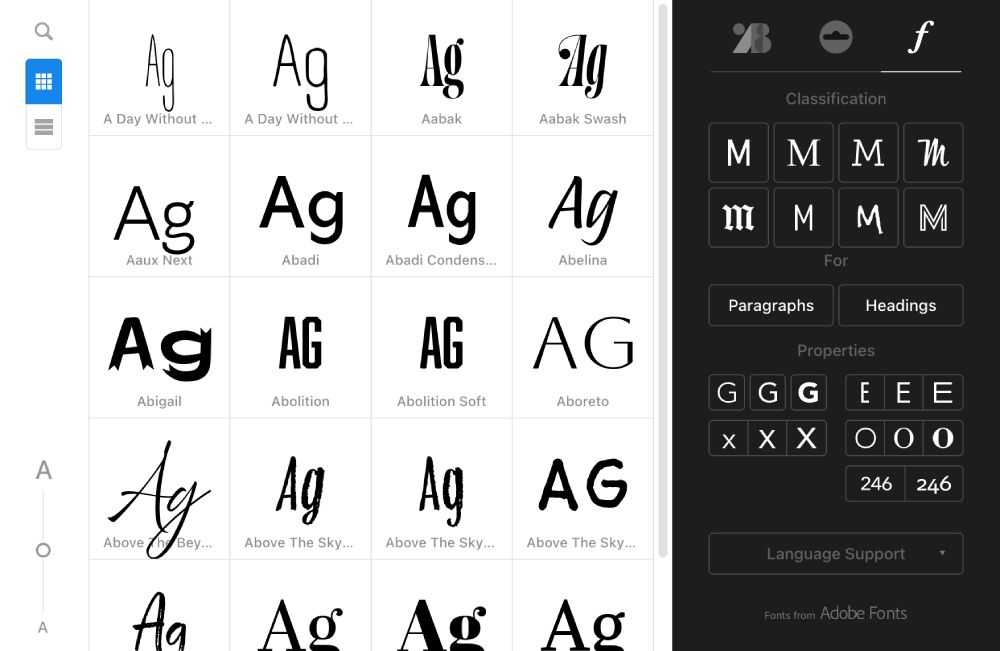
Readymag also integrates with Adobe Fonts, Google Fonts, and Type.Today Fonts, as stated on its pricing page. The platform has these fonts built directly into its font library. That means you don’t have to manually download a font, upload it to Readymag, or install it on your computer.

Another integration supported by Readymag is Unsplash stock photos. When you’re editing a project, you can add a Picture widget and choose images directly from Unsplash rather than downloading them first.

However, as a visual artist you might not need this integration as you want to display your own artwork. This is rather useful for developers, journalists, or marketing specialists, who also belong to Readymag’s clientele.

Readymag also integrates with Adobe Fonts, Google Fonts, and Type.Today Fonts.

Adobe Portfolio has the edge for artists here, because its integrations (Behance, Lightroom, Photoshop, and the rest of Creative Cloud) plug directly into the creative workflow and can save you a lot of time on uploading and formatting your projects.

Readymag’s integrations (Adobe Fonts, Google Fonts, Unsplash) lean more toward general design needs, rather than artist-specific requirements.

Ultimately, Adobe Portfolio’s ecosystem is the much better fit for visual artists.

Pricing

Readymag
3/5
3/5
Adobe Portfolio
4.5/5
4.5/5

READYMAG VS ADOBE PORTFOLIO

Is Adobe portfolio really free?

• Adobe Portfolio Pricing

Adobe Portfolio doesn’t have a standalone paid plan. Instead, it’s included with certain Adobe subscriptions.

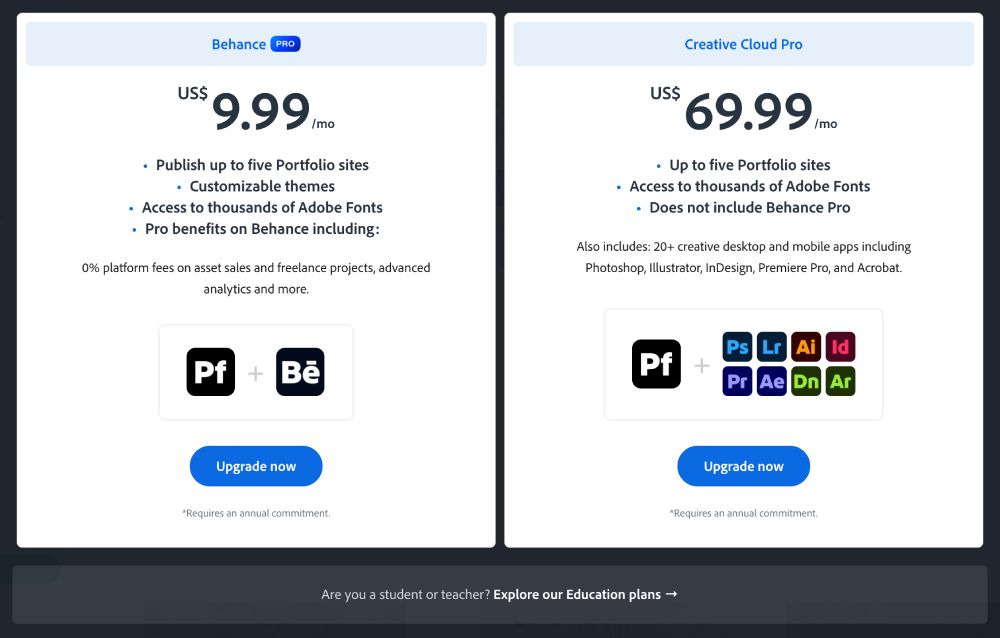
The most affordable option is to get it with the Behance Pro Plan at $9.99 per month. You can publish up to 5 portfolio sites with customizable themes, and enjoy Pro benefits on Behance, such as 0% commission on sales and advanced analytics. 

Other options include the Lightroom Plan at $11.99/mo and the Photography Plan (Lightroom + Photoshop) at $19.99/mo (both billed annually). 

If you’re planning to use a range of Adobe apps, you can consider subscribing to the Creative Cloud Plan, which gives you access to the full Adobe ecosystem. As a student or teacher, you can save up to 70% here

The most affordable option to get Adobe Portfolio is with the Behance Pro Plan.

Is Readymag completely free?

• Readymag Pricing

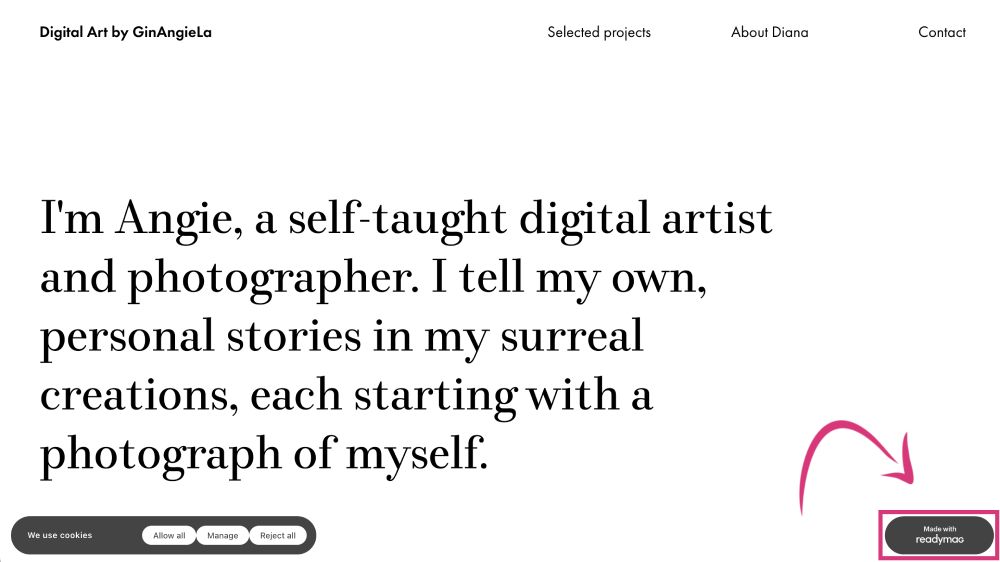
Contrary to Adobe Portfolio, Readymag does have a free plan. A free portfolio site has a pretty unobstrusive brand logo in the bottom-right corner but comes with limited features.

However, as I already mentioned above, you can’t use SEO customization features and a custom domain on the free plan. My free portfolio site, which I created for this review, for example, is currently available at readymag.website/u2243490213/6530802/ (I will delete it later on).

With all these numbers and slashes, the URL isn’t very memorable and not exactly good-looking when included on your business card or gallery application.

A free Readymag portfolio site has an unobstrusive brand logo in the bottom-right corner but comes with limited features.

A free Readymag portfolio site has an unobstrusive brand logo in the bottom-right corner but comes with limited features.

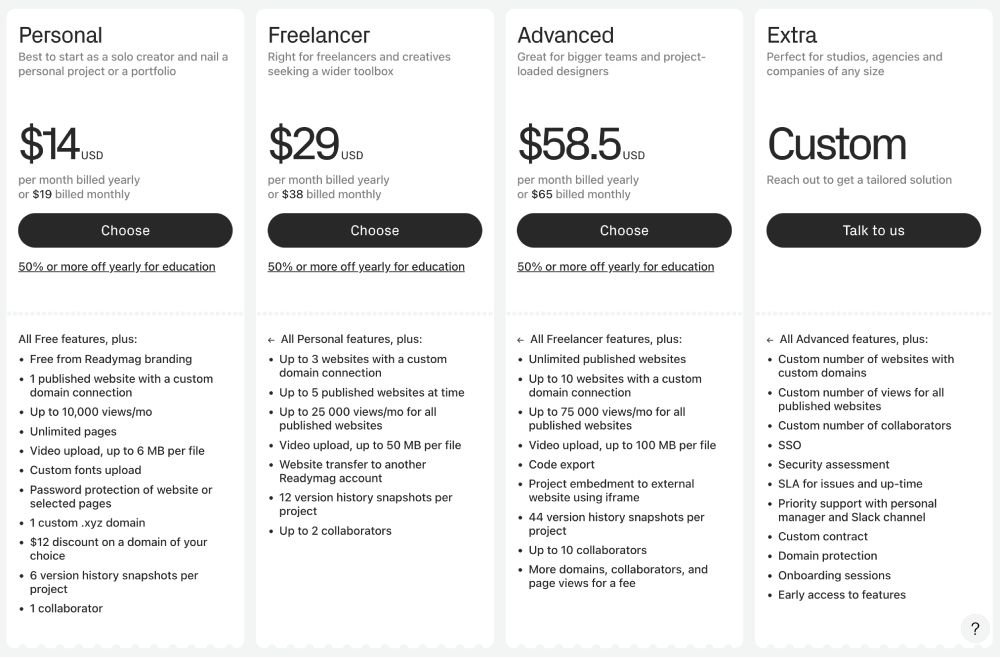
To connect a custom domain and enjoy more features, you’ll have to upgrade to at least the Personal Plan at $14 per month (billed annually). 

Readymag also has a cap on monthly views. If 10k views are not enough for you, you’ll need to subscribe to the Freelancer Plan at $29/mo, which allows 25k monthly views for all portfolio sites you publish. This plan also allows video file uploads of up to 100 MB, while picture file uploads are always capped to 6 MB on all of Readymag’s plans.

To connect a custom domain and enjoy more features, you'll have to upgrade to at least Readymag's Personal Plan.
To connect a custom domain and enjoy more features, you’ll have to upgrade to at least Readymag’s Personal Plan.

Readymag offers a free plan, but it’s limited: a visible watermark, no SEO customization, no custom domain, and an unmemorable URL that isn’t great for a professional presence. To get real functionality, you’re looking at $14–29/month.

Adobe Portfolio, on the other hand, has no standalone free tier, but it’s bundled into Adobe subscriptions starting at just $9.99/month (via the Behance Pro Plan), and even that entry-level option includes 5 customizable portfolio sites, 0% commission on Behance sales, and advanced analytics.

For artists who want a genuinely usable portfolio without a steep price climb, Adobe Portfolio offers better value at the low end.

Readymag vs Adobe Portfolio: Overall Rating

Across all the aspects I tested both Readymag and Adobe Portfolio, including ease of use, templates, customization options, integrations, and pricing, Adobe Portfolio consistently came out ahead.

That said, Adobe Portfolio is without doubt the stronger choice for most artists. It’s easy to use and offers beautifully designed templates that put your art into the focus and can be customized to your needs. 

Especially interesting for artists is its integration with Behance, Lightroom, Photoshop, and other Creative Cloud apps. Along with SEO tools, Google Analytics, and custom domains, Adobe Portfolio delivers excellent value for money.

Readymag isn’t inherently a bad platform but its interface can feel confusing, most templates cost extra, and useful features such as SEO and custom domains require a paid plan. It features weak integrations for artists, and while it offers a free plan, it’s too limited to be truly usable.

🚀 Bottom line: For artists specifically, Adobe Portfolio is the stronger all-around choice for most artists, offering more value, better design out of the box, and an easier journey from onboarding to a stunning, professional-looking portfolio site.

Frequently Asked Questions

Does Readymag support eCommerce?

Readymag isn’t designed as a dedicated eCommerce platform. You can add an eCommerce widget and connect services such as Stripe, Ecwid, Shopify, or Gumroad to sell products and accept payments.

This can work for artists who want to sell a relatively small number of products. However, if you want to sell a larger selection of your work, a platform like Pixpa or Shopify is likely a better choice.

Can I sell on Adobe Portfolio?

Adobe Portfolio is primarily a platform to showcase your work. What you can do, though, is add buttons or links from your portfolio site to a third-party store or shopping cart and sell that way.

Can I still use Adobe Portfolio without a subscription?

Adobe Portfolio is only available with the Behance Pro, Lightroom, Photography, and Creative Cloud plans.

Which is better, Behance or Adobe Portfolio?

Behance and Adobe Portfolio serve different purposes.

Behance is a network where you can publish projects, follow other creatives, receive appreciations, participate in the community, and potentially get noticed by clients and employers.

Adobe Portfolio is aimed at creating a professional portfolio site with custom layout, pages, navigation, branding, and your own domain.

AngieG. – The Person behind the Pictures
HI Y'ALL!  
My name is Angie and I’m a self-taught digital artist. On this blog, I am sharing my experience and educational resources to help you confidently showcase and sell your art, without needing any expensive marketing training. My desire is to empower you to leverage your potential and follow your passion!
LET'S CONNECT:
SHARE THIS POST:

Leave a Reply