Using The TourBox Dynamic Color Picker In Clip Studio Paint


Disclosure: Some of the links in this post may be affiliate links. If you click on the link and make a purchase, I will receive an affiliate commission at no extra cost to you. As an Amazon Associate I earn from qualifying purchases.

The TourBox brings your most-used functions and shortcuts right to the fingertips of every digital artist, letting you adjust things like brush size, opacity, and canvas rotation at the push of a button. What’s more, its Dynamic Color Picker opens the color wheel right beneath your pen tip, so you can change colors without even lifting your pen and interrupting your workflow. In this post, I show you what it’s like using the TourBox Dynamic Color Picker in Clip Studio Paint.

TourBox Dynamic Color Picker

If you’re following my blog, you know that I’ve been using the TourBox Elite Plus for a while now when creating.

In a recent post, I showed you how much easier the TourBox has made my life when working with my digital art software

→ TourBox Elite Plus Review: Game Changer For Digital Artists?

You can think of the TourBox Elite as a creative controller that lets you access the shortcuts and mouse clicks in a single device, sparing you the hassle of constantly reaching over to your keyboard or mouse while editing. 

It makes the process feel much smoother because your left hand can stay on the TourBox, while you keep holding the stylus in your right hand. In short, it’s a real game changer for digital artists.

Using the TourBox Dynamic Color Picker in Clip Studio Paint

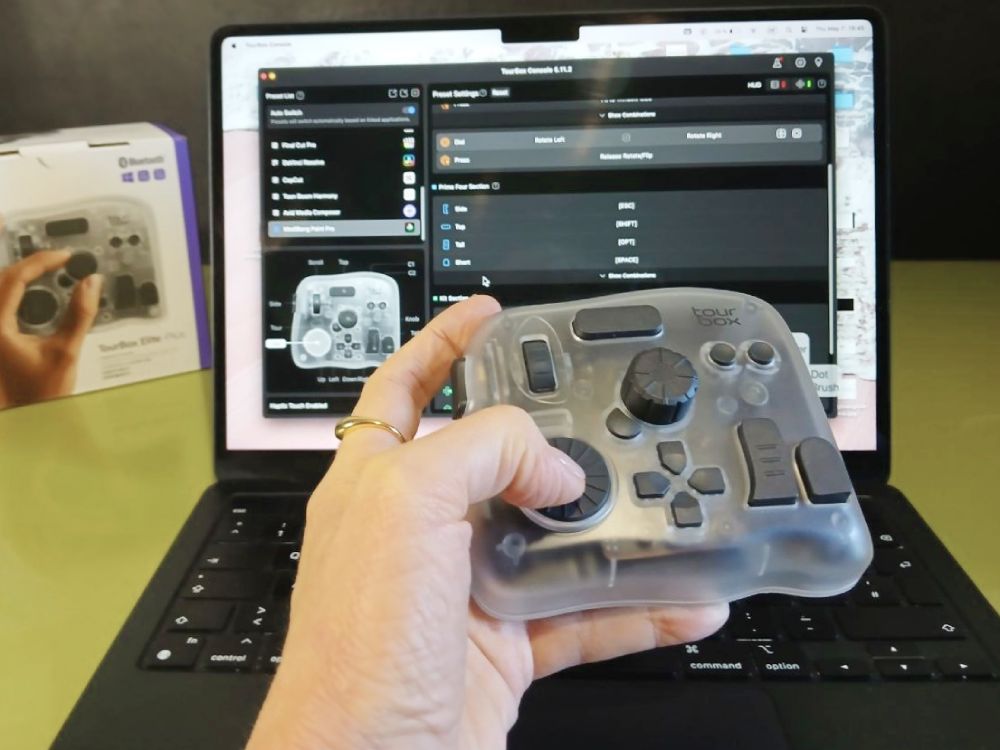
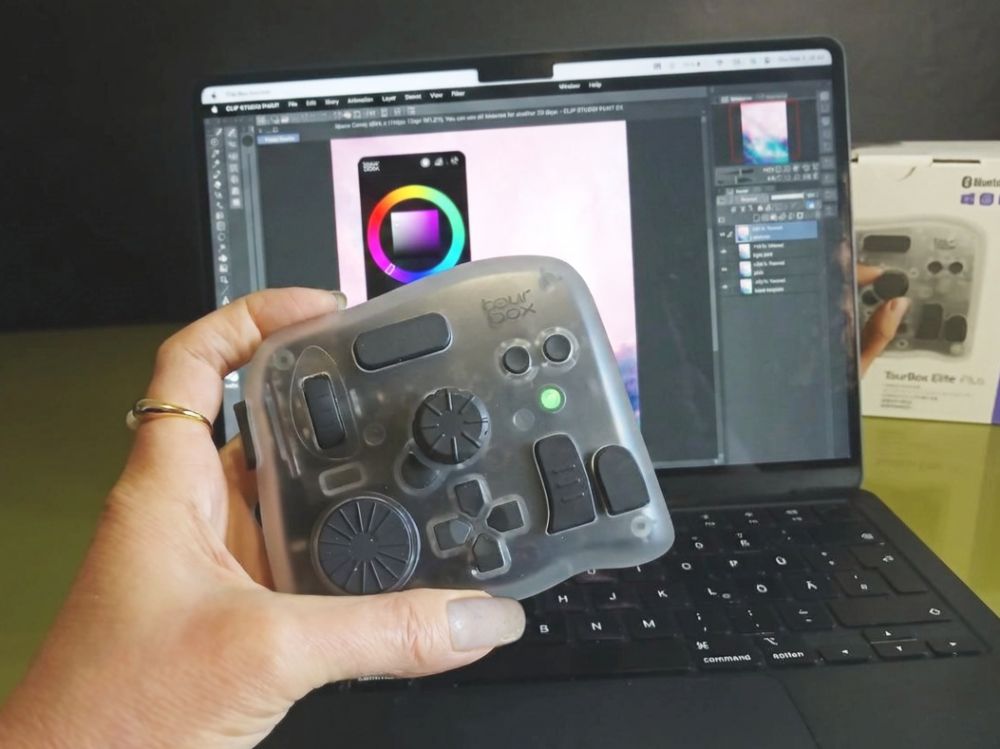
The TourBox Elite Plus is a highly customizable device with thoughtfully positioned buttons, dials, knobs, and wheels.

As you can see, the TourBox features a whole range of buttons, dials, knobs, and wheels to which you can assign almost any function, such as brush size, brush hardness and opacity, zoom, pan, rotate, undo, redo, and so on.

One thing I found particularly convenient when working with the TourBox is using the Dynamic Color Picker.

…and before you’re asking: no, the Dynamic Color Picker is not the same as the regular color pickers that you might already know from software like Photoshop, Clip Studio Paint, or Corel Painter.

It’s TourBox’s very own feature that lets you adjust your painting color using the controller’s dials instead of actually opening a color picker window. It currently supports Photoshop and Clip Studio Paint.

It may sound like a small feature, but it actually makes a huge difference.

Because instead of opening dialogs and dragging sliders with your mouse or pen, you can make color adjustments at the turn of a wheel—without ever taking your pen off the canvas!

In this post, I show you how to use the Dynamic Color Picker with the TourBox in Clip Studio Paint and how easy it is to select colors without interrupting your workflow.

Let’s get into it.

TourBox Dynamic Color Picker: Table of Contents

 Our Newsletter  is packed with creative tips, free tutorials, art tool reviews, and looaads of inspiration!

What is the purpose of the color picker tool?

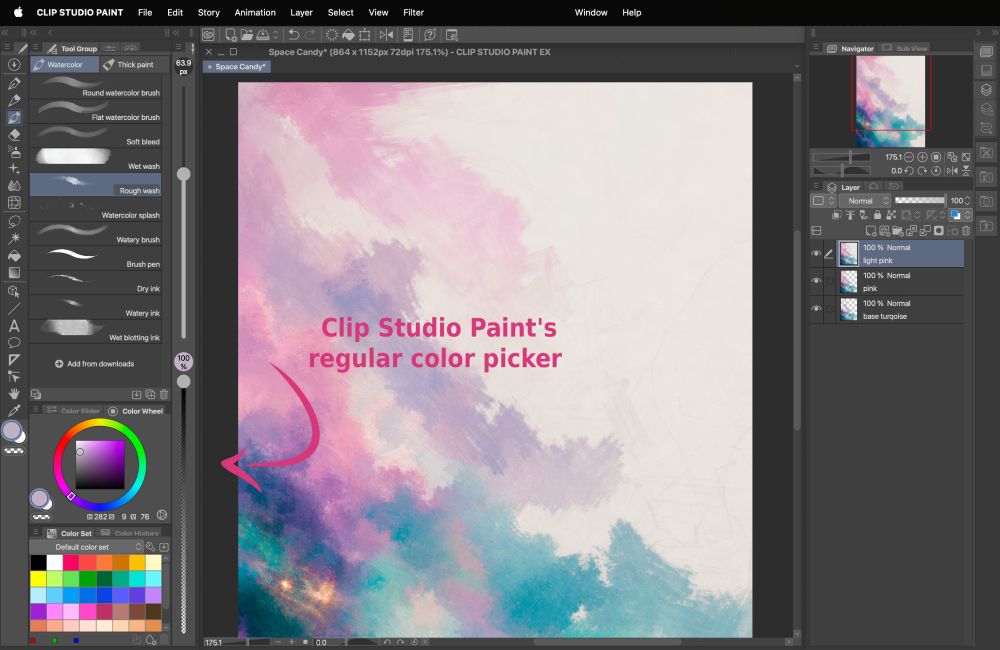
First things first, let me start with the standard color picker tool in Clip Studio Paint.

If you’re familiar with CSP, you know that changing colors always requires you to reach over to the tool palette on the left-hand side where the color picker is located by default.

That means you have to lift the pen from the canvas, move it over to the tool palette, tap on the color wheel or color field to select a color, and then move your pen back to the canvas where you were painting.

Of course, you can also detach the color picker from the tool palette and drag it closer to the area on the canvas where you’re currently painting.

However, the basic routine remains the same: stop painting—lift your pen over to the color picker—select a color—move the pen back to the canvas.

Even when you use your mouse, you still have to interrupt your workflow just to make a simple color adjustment.

While each interruption only takes a second or two, those small pauses quickly add up over the course of a painting session and keep breaking your creative flow.
Clip Studio Paint regular color picker
The regular CSP color picker requires you to reach over to the tool palette each time you want to select a new color.

What is the TourBox Dynamic Color Picker?

As I already mentioned above, the Dynamic Color Picker is not the same as the regular color picker in Clip Studio Paint (or in Photoshop, for that matter). 

It’s a dedicated feature that is only available with the TourBox. 

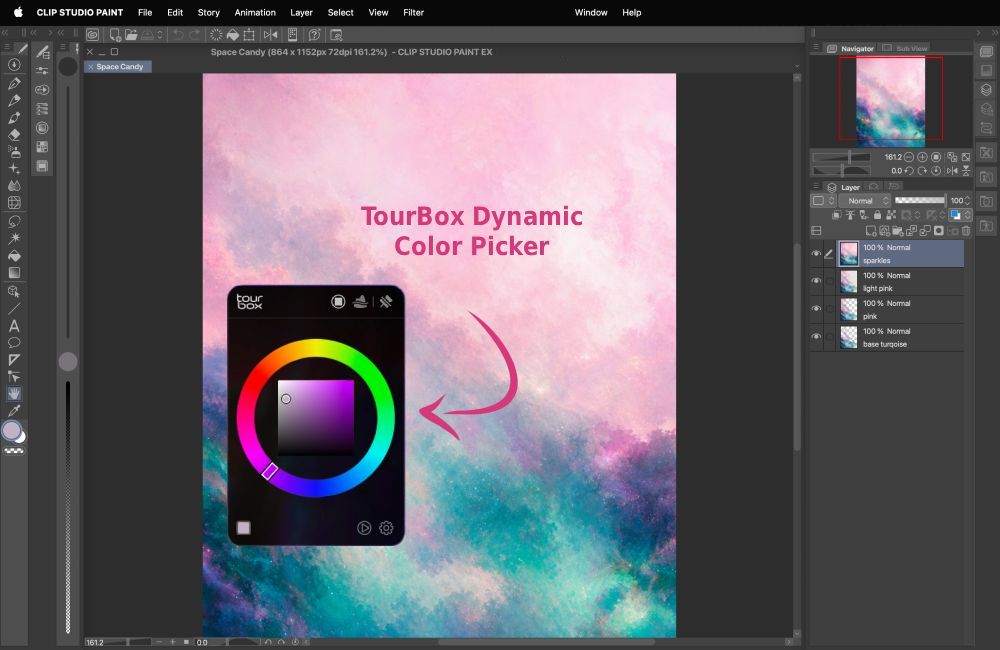
You can assign any button on the TourBox to open the Dynamic Color Picker. Then, when you press that button, it brings up a special color picker window, right underneath your pen tip. 

That means with the Dynamic Color Picker, you can select a color without moving your hand away from the canvas. Your pen can stay on the area where you’re painting without interrupting your workflow even for a second!

It’s a really fast and convenient way to make color adjustments with a physical device. If you paint frequently, the Dynamic Color Picker can make your workflow feel much more fluid because you don’t need to repeatedly reach over anywhere for a color.

Plus, you gain more canvas space for painting because you can collapse the tool palette if you don’t want to change brushes or access other tools frequently—but even that can be done with the TourBox. 

TourBox Dynamic Color Picker Clip Studio Paint
The TourBox Dynamic Color Picker appears right beneath your pen tip, letting you select a color without interrupting your workflow.

And, just for your information, you can still use the standard color picker in both CSP and Photoshop whenever you need it. For example, you can bring it up to enter a hexadecimal value, sample from swatches, or work with precise color values.

The TourBox Dynamic Color Picker simply offers a more convenient alternative to the regular tool.

How do you use the Dynamic Color Picker with the TourBox?

In the TourBox Console (the software that lets you customize the device), you can assign the Dynamic Color Picker to any button on the TourBox that’s the most comfortable for you. 

When you click that button while you’re painting, a dedicated color wheel will pop up right underneath your pen tip. That means you don’t need to drag your stylus all the way over to the left to use the color wheel. 

mapping dynamic color picker to tourbox elite plus

Customizing the TourBox Elite Plus in the TourBox Console software.

For example, you can map the Dynamic Color Picker to one of the buttons in the lower or upper right corner, depending on your preferences. 

Then, you simply press the button with your thumb or index finger (depending on which button you chose) to make the Dynamic Color Picker pop up. 

With your free fingers, you can rotate the knobs and dials to adjust hue, saturation, and brightness. All of this happens without interrupting your painting flow.

You don’t have to shift the position of your hands at all. Your left hand can remain on the TourBox, while your right hand holds the stylus (or the other way round if you’re left-handed). 

There’s no reaching for the tool palette anymore, no dragging sliders, and no breaking your workflow.

The result is a smooth, uninterrupted painting experience. While it might require some getting used to, I can tell you that the entire process becomes almost subconscious after a few sessions.

Yet another color picker: The TourBox Luma-Based Palette

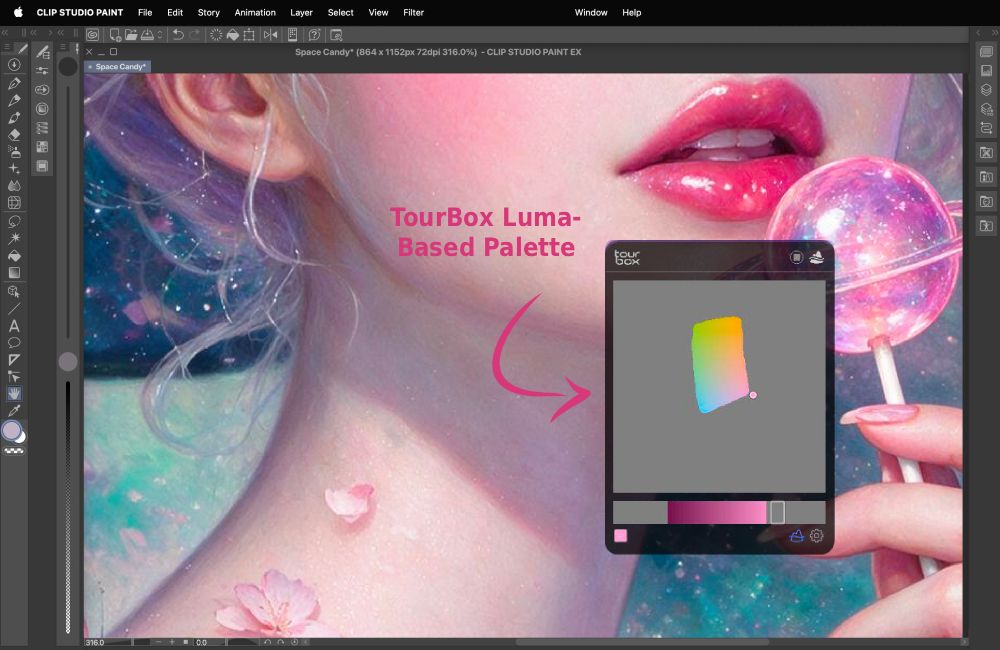
The Luma-Based Palette is another TourBox-exclusive feature. It organizes colors based on their brightness values. In technical jargon, you actually call those values “luma”; therefore the name. 

As opposed to the Dynamic Color Picker, the Luma-Based Palette groups colors with the same brightness together. When you activate it with a push of a button on the TourBox, the palette shows you other colors with similar luminance levels to the color you’re currently using.

The Dynamic Color Picker is really practical for picking colors of different hues and saturations, but when it comes to the fine-tuning, you can easily pick a color that’s too bright or too dark for your current painting.

The Luma-Based Palette eliminates that guesswork by only showing you colors in the same tonal spectrum. 

I find the Luma-Based Palette especially useful when painting portraits and working with shadows and highlights. It really makes it easy to add subtle nuances, while keeping the composition beautifully balanced and harmonious. 

Just like with the Dynamic Color Picker, you can bring up the Luma-Based Palette at the click of a button.

TourBox Luma-Based Palette
The TourBox Luma-Based Palette organizes colors based on their brightness values.

How do you get the Dynamic Color Picker & the Luma-Based Palette?

Both the Dynamic Color Picker and the Luma-Based Palette are native features of the TourBox. Once you’ve got a TourBox, you can simply set it up in the software, the TourBox Console. 

The company has a good tutorial on its website on how to set up the Dynamic Color Picker that you can follow step by step.

The Dynamic Color Picker currently works with:

All current TourBox models support the Dynamic Color Picker, provided you’re using a compatible version of TourBox Console and supported software. That includes: 

I’m using the TourBox Elite Plus in the color Ice Translucent. The Arctic Series also provides editions in violet, white, blue, and indigo, if that’s more to your taste. ☺️

The TourBox Elite Plus is available in different pastel tones from the TourBox Store on Amazon.

AngieG. – The Person behind the Pictures
HI Y'ALL!  

My name is Angie and I’m a self-taught digital artist. On this blog, I am sharing my knowledge and discussing the best software and hardware for different artistic needs. My desire is to offer options for all creative stages and budgets so that everyone can follow their dream and create art!

LET'S CONNECT:
SHARE THIS POST:

Leave a Reply